# Introduction
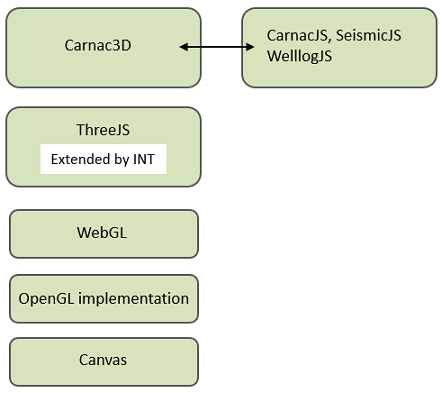
The Carnac3D module is part of the GeotoolkitJS library, this module allows rendering of 3D scenes using WebGL 2.0 technology. This module uses and extends the three.js library (MIT license). The Carnac3D module adds Oil & Gas oriented objects to the set of basic 3D objects already available like:
- Seismic
- Well trajectories
- Well logs
- Horizons
- Micro seismic
- And more...
It also offers solutions for Oil & Gas specific constraints like big data and rendering accuracy.
# General concepts
Carnac3D introduces the concept of Plot similar to CarnacJS plot, it contains the scene which is rendered by a WebGLRenderer. The WebGLRenderer will translate scene objects into WebGL calls, its implementation is a customized version of ThreeJS WebGLRenderer. The plot also manages the camera (user location in the scene and type of perspective), the tools (picking, cursor, etc) and allows configuration of the renderer.
The scene contains 3D objects that can either be simple containers or real 3D shapes:
An Object3D is a container that can be used to simply structure the content of the scene for easier manipulation, or it can hold a special transformation that needs to be applied to several children.
Actual shapes (mesh, line, sprites, points...) also hold a local transformation and contains a geometry and a material.
A geometry is the object containing the actual XYZ values but also its normals and other attributes defining the shape skeleton.
A material is the object defining how to render a skeleton, like color, shaders and more.
# Model view projection
Like native OpenGL, Carnac3D and ThreeJS uses matrices to handle model-view-projection:
const gl_Position = projectionMatrix * viewMatrix * modelMatrix * vec4(vertex, 1.0);
const modelMatrix = object.matrixWorld
const viewMatrix = camera.matrixWorldInverse
const projectionMatrix = camera.projectionMatrix
However, direct use of objects matrices is not recommended. To change an object's translation, scale, and rotation, it is suggested to instead use the Three.js Object3D public fields for position, scale and rotation like so:
import {Object3D} from '@int/geotoolkit3d/scene/Object3D'; // which extends Three.js's Object3D
import {Plot} from '@int/geotoolkit3d/Plot';
import {Euler} from 'three';

const plot3d = new Plot({container: divElement});
const obj = new Object3D();
plot3d.getRoot().add(obj);

// Position
// Example 1: Set the object's position to (x: 100, y: 50, z: 20)
obj.position.set(100, 50, 20);
// Example 2: increment the existing object's position on Z by 25
obj.position.z += 25;

// Scale
// Example: Set the object's scale example: 2x taller on the vertical axis
// Note: Scaling objects directly is discouraged.
// When possible, we recommend scaling via the 3D Plot instead like so:
plot3d.setOptions({scale: new Vector3(1, 1, 2)});
// Or if the object only need to be scaled, it can be done like so:
obj.scale.z = 2;
// Or
obj.scale = new Vector3(1, 1, 2);

// Rotation
// Example: rotate 90° counter-clockwise around the vertical axis when looking downward
obj.rotation.z = Math.PI / 2;
// Or
obj.rotation.copy(new Euler(0, 0, Math.PI / 2));

// Updating the visuals
// After updating the Object3D public fields, it is recommended to invalidate the Plot to trigger a new frame.
// Please see the Invalidation section below for more details.
plot3d.invalidateObject();
// Or
obj.invalidateObject();
The object will automatically update its local matrix using the fields above, it will also recompute its worldMatrix. An object's worldMatrix is the concatenation of its own matrix with it's parent worldMatrix, which means a transformation applied to an object applies automatically to its children recursively.
// Local Matrix, contain the object's own transformations
object.matrix = Matrix.compose(object.position, object.quaternion, object.scale);

// World Matrix, contains the objects transformations and the sum of all it's parent transformations, up to the scene root.
object.worldMatrix = object.matrix * object.parent.worldMatrix;
# Invalidation and rendering
The plot internally maintain a validation state and uses AnimationFrame to ensure that the scene will be rendered only when necessary, saving battery and resources. When an object is modified it should notify its parent that it has been invalidated. The event will be forwarded through the hierarchy until the plot catches it and marks himself as dirty. When the next animationFrame lands, the plot will trigger a scene render
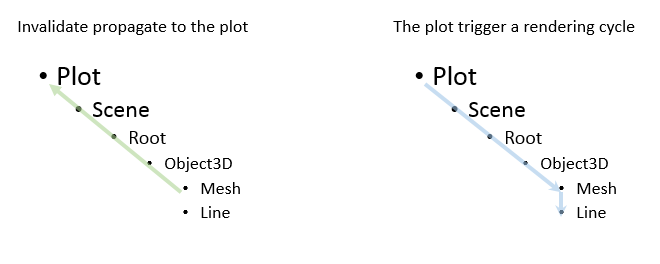
A rendering cycle is done in two passes, first it traverses the scene and call updateObject() to allow objects to update themselves. Then the WebGLRenderer traverses the scene and uses WebGL to render each object.
# GPU picking
Picking is the ability to find which object is at a given screen position and what is the world coordinate of the point for a given screen location. Carnac3D implements a GPU picking technique that setup special shaders and uses WebGL rendering to compute this information.
First, the pickingrenderer traverses the scene and replace the materials with special 'pickingmaterials'. The pickingmaterials are materials using custom vertexshaders & fragmentshaders that will write information encoded as rgba in the output pixels.
The pickingmaterials are configured to write shape-id and the whole scene is then rendered into a special WebGLTarget (1x1 pixel) positioned at the given screen location. The pixel is extracted and the shape-id is decoded, this gives 3D object present at the given screen position (closest to the camera).
The pickingmaterials are reconfigured to render XYZ coordinates and the scene is rendered again, but only with the object found previously. The XYZ values are decoded and added to the picking result.
Some objects require one more pass to add some extra information like point-index for a pointset. Otherwise the picking result is returned.
# Requirements
As Carnac3D uses WebGL2, it requires that the browser supports WebGL2, see WebGL2 availability for a complete list of browsers supporting it. You can also use WebGL Report for a detailed report on your browser WebGL capabilities, or GetWebGL.org test for a quick test.
Note that WebGL support might be disabled on your browser based on some blacklist/whitelist mechanism. Read more...
The Carnac3D module depends on three.js r176.
When using the 3D module, it is necessary to import the three.js devDependency in your application's package.json like so:
{
    "devDependencies": {
        "@types/three”: “0.176.0"
    }
}
If your application already make uses of three.js, please make sure to synchronize to the same r176 version, and to not import the dependency twice.
# Best practices
Rendering accuracy
ModelViewProjection is made on the GPU and implies floating point calculation, moreover WebGL supports only single precision floating point decimals.
This could lead to computing errors quite quickly when manipulation big numbers.
To void rendering errors, it's recommended to define your vertex coordinates around (0,0,0) and then to use object.position to translate the whole object to its actual XYZ location.
For example define a well trajectory using deviation values and set the trajectory position to be the wellbore coordinates.Memory usage and performances
Keep in mind that pushing large objects on the GPU is expensive but also that graphic memory is limited (depends on the hardware).
Also, rendering many small mesh is often less efficient then rendering a single big mesh. When possible, try to merge geometries together.