You can run Python 3 scripts within the Simulator interface.
In the Petromod Simulator, click the Advanced runs tab to display the Open Simulator.
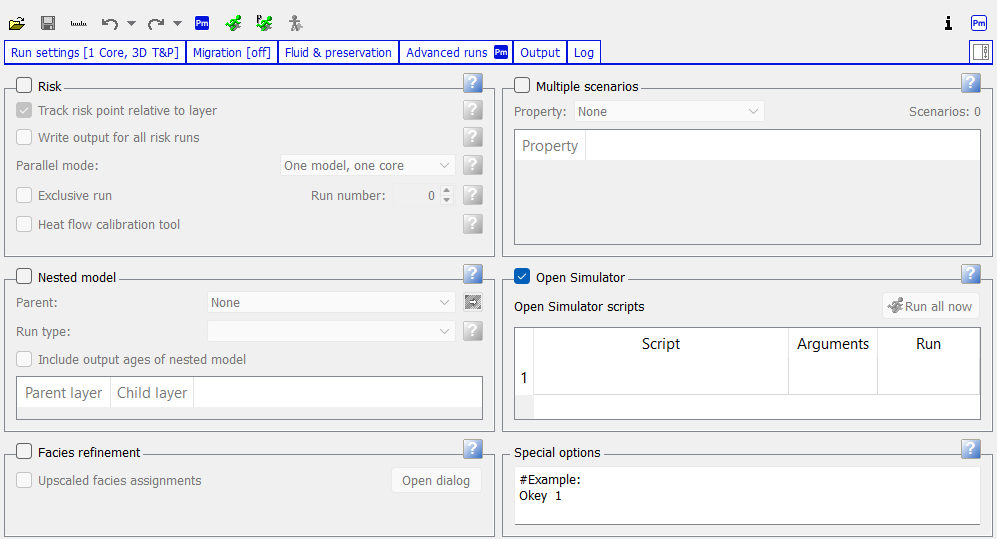
A set of sample scripts is provided in the subfolder scripts of your Petromod installation folder. Script files have to be written in Python 3 to be read and followed by the Petromod Simulator.
Double-click into a field of the Script column, an explorer is launched displaying the Python scripts that are stored in the subfolder “scripts” of your Petromod installation folder.
Select one of these scripts and then click Open.
The selected script is listed in the Open Simulator dialog box and a new and empty row is added for selecting additional scripts.
Select multiple scripts in the Explorer dialog, then click Open.
All selected scripts are loaded each into a row of their own, and an additional empty row is added. Only the checked scripts in the list are activated. When you run a Petromod simulation, the activated scripts run in the order in which they are listed.
To delete a script from the list, right-click the scripts and click Delete on the context menu.
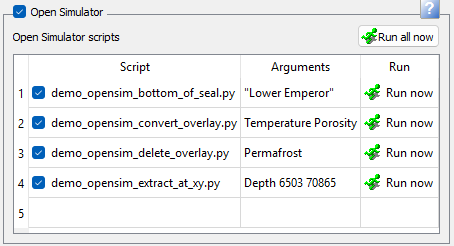
Use the Arguments column to pass arguments to the scripts. Multiple arguments are separated by spaces. If an argument contains spaces it needs to be enclosed in quotation marks.
You can also run scripts manually. In the Open Simulator dialog box, click
 Run now beside any script, and it will immediately run using the existing simulation output. If you click Run all now, all activated scripts will run.
Parent topic:Get started