You can use the demo_opensim_python_version.py script to check if the Python installation is correctly working using the Open Simulator.
Open the Petromod Command Menu and open the project using the Project button. Select the dimension of the model.
Open the Simulator.
Select any model.
Click the Advanced runs tab.
The Open Simulator dialog box opens.
In the Open Simulator dialog box, double-click in the field below the Script and select the
demo_opensim_python_version.pyscript. It requires no arguments.Click
 Run now.
The output in the Open Simulator interface should contain a message such as:
Python
Executable: C:\Program Files\Python312\python.exe
Version: 3.12.10 (tags/v3.12.10:0cc8128, Apr 8 2025, 12:21:36) [MSC v.1943 64 bit (AMD64)]

Petromod Open Simulator is working.
Petromod version: 2026.2
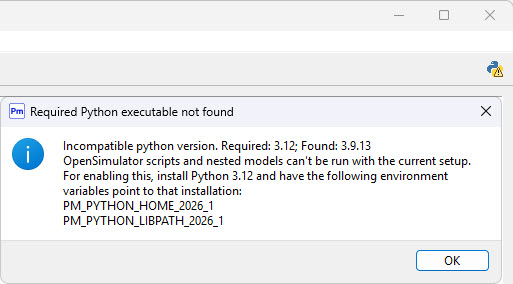
The Simulator can detect if the required Python version is not installed or not set up correctly. When this occurs, a warning appears in the top-right corner of the simulator interface, accompanied by the message shown below (for more information on installing Python for Petromod, please refer to the Petromod Installation Guide).
An error message in the Open Simulator interface might indicate a broken setup:
Error: Script run has crashed! If there is no output from the script run at all, this could mean that python is not installed on the system, or installed incorrectly. Otherwise, it could be due to an error in the script or the script arguments.For more information on installing Petromod, see the Petromod Installation Guide.