A ModuleNotFoundError in Python indicates that the Python interpreter is unable to locate a module or package that your code is attempting to import.
The following steps can be followed to install missed module:
The Python Toolkit 2021.1 or higher version must already be installed.
The PC must have access to internet.
- Run “Python Prompt (Pipesim_PTK_20xx.x)” with Administrator privilege (where 20xx.x is the PTK version installed)
Click on Windows Start menu
Search for SLB Pipesim 20xx.x -> Python Prompt (Pipesim_PTK_20xx.x)
Right-click on the icon, Select More -> Open file location
Run Python Prompt (Pipesim_PTK_20xx.x) with Administrator privilege
- Execute the following command in the command prompt to install ‘module_name’ library
>>> conda install -c defaults -c conda-forge -y module_name- Wait until installation is finished and close the command prompt
Python Toolkit code example copied to user folder cannot be executed. Python reports message “ModuleNotFoundError: No module named ‘utilities’”
Some users might experience problem with running Excel Case Study outside of installation folder. When user click Excel button ‘Connect with Python script’ the console window shows errors “Unable to import required dependencies: numpy” and “DLL load failed while importing”. This error appears when python doesn’t recognize environment properly. There are two reasons why it might happen.
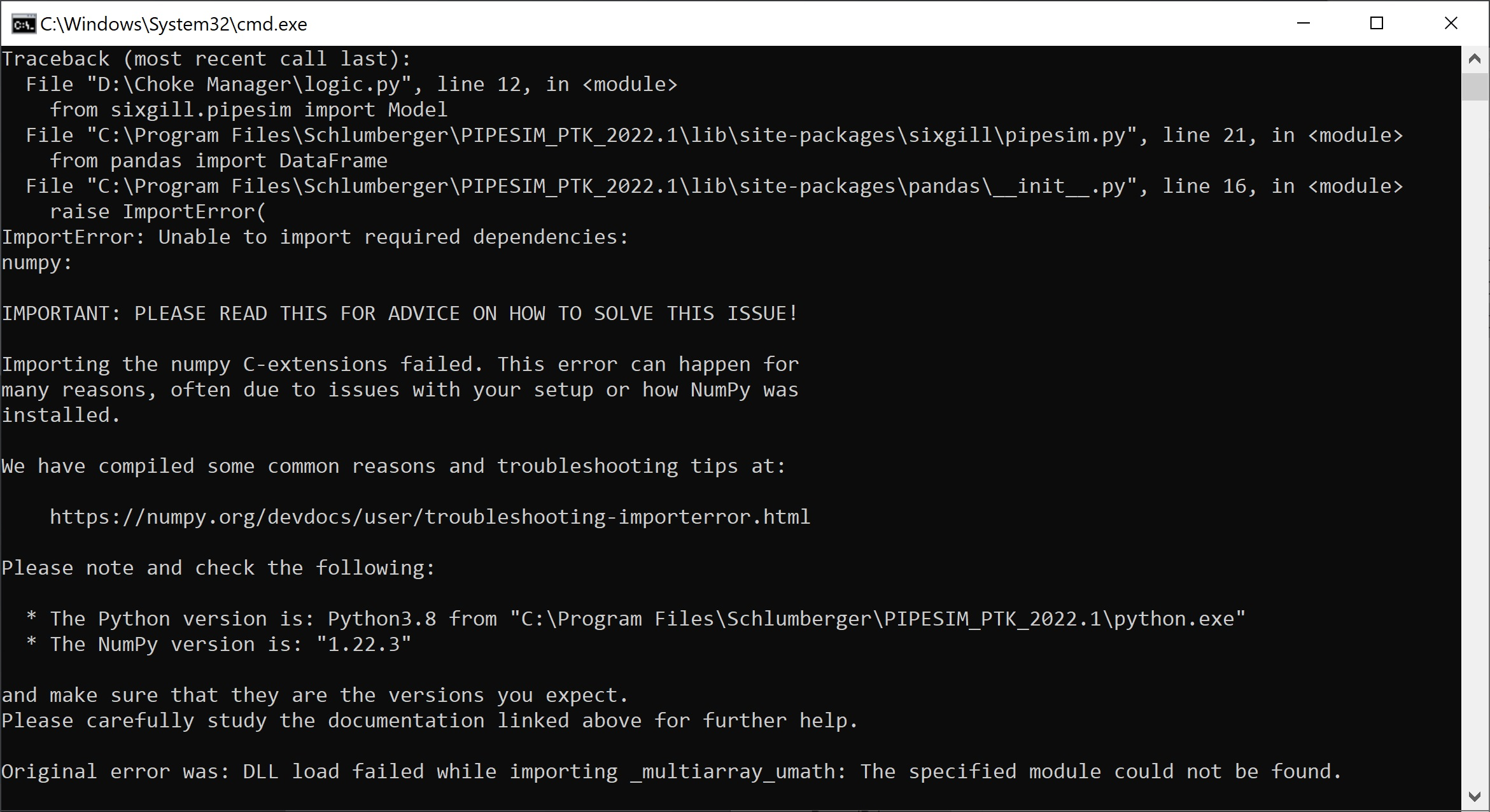
In the most cases the reason of the error is missed folder _CommonScripts. Files in this folder are required to activate conda environment before python code is called. Copy folder _CommonScripts along with any example folder to the temporary location. You also might copy files from folder _CommonScripts and paste them at the same folder where you store Excel file and python scripts.
There is also another case when IT policy prevents executing bat files. Then user must follow the steps:
Run Python Prompt to initialize conda environment properly
Call the Excel file from the command line, automatically passing the correct environment to the Excel file

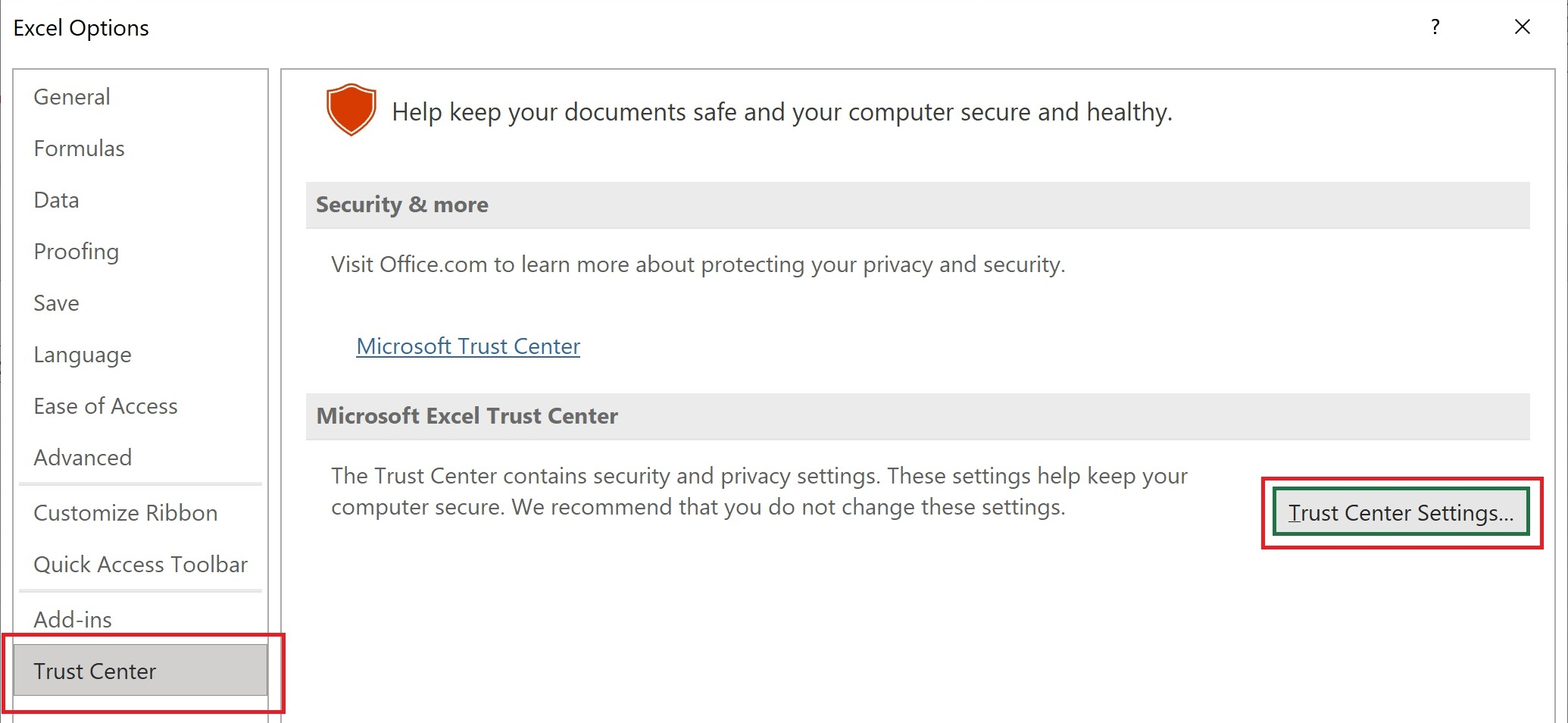
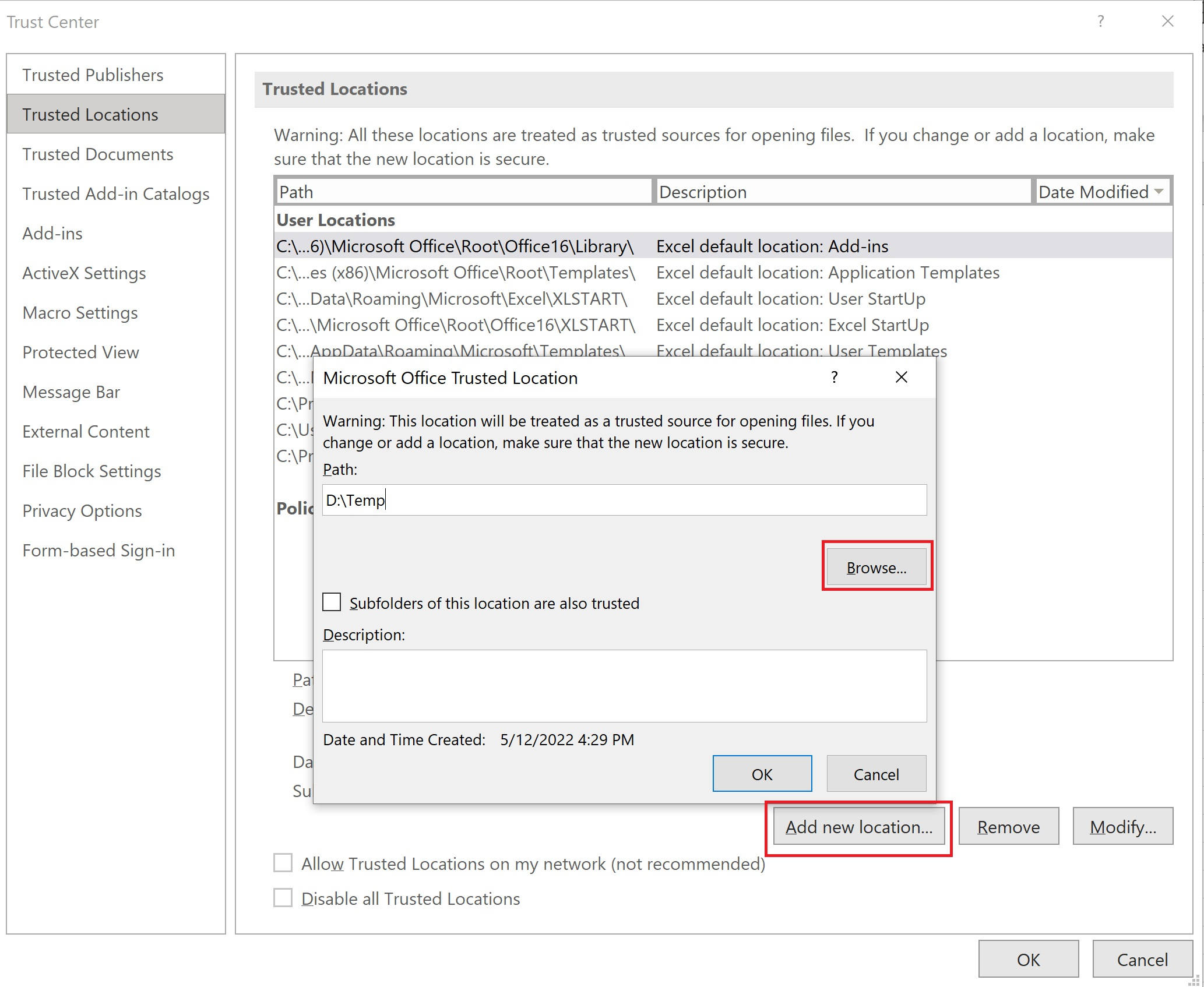
Excel notification ‘Macro have been disabled’ appears every time when workbook is opened. Notification also could be hidden but macro cannot be executed, and user sees popup message ‘Cannot run the macro. The macro may not be available in this workbook’.