Python has many libraries for working with Excel. Pipesim Python Toolkit uses xlwings that makes reading and writing Escel worksheet easy. Scripts can read and write data, format sheets, and be assigned to VBA features such as buttons.
Reading and writing Excel ranges is done through the xlwings Python module, often abbreviated to xw. The following examples are provided for information with many more methods and features available in xlwings. See the xlwings documentation for more help.
Reading and writing tabulated data formats are subject to the following considerations:
Pandas DataFrames can be written to Excel.
Lists of lists or dictionaries cannot be written to Excel (as of xlwings 0.17.1).
To read tabulated data formats from Excel you must use the utility functions provided in the Pipesim Python Toolkit (see section below) for converting the lists of lists into DataFrames and dictionaries.
The Pipesim Python Toolkit allows scripts to be called from workbooks, but any script can interact with Excel workbooks. The interactive Python command line is typically the easiest way to try out code.
Open a new workbook:
    >>> import xlwings as xw
    >>> app = xw.App()
Current workbook and worksheet:
    >>> bk = xw.books.active
    >>> sht = bk.sheets.active
Activate a worksheet:
>>> bk.sheets('Sheet1').activate()Writing to a cell:
>>> xw.Range('A1').value = 'Hello world'Reading from a cell:
>>> value = xw.Range('A1').valueWriting a DataFrame to a cell
>>> xw.Range('B4').value = geometry_dfReading a range and converting to DataFrame
    #Automatically determine the table from the top left cell
    values = xw.Range('B4').expand().value
    #Or specify the top left and bottom right cells
    values = xw.Range('B4', 'G7').value
    from sixgill.utilities import range_to_dataframe
df = range_to_dataframe(values)You can call Python scripts from Excel workbooks and assign python methods to VBA features like a button.
The new way of communication between Excel and Python Toolkit based on client-server architecture and includes at least 4 elements:
Excel document: user interface or data store during data exchange with Pipesim model.
Logic.py: script implements logic of data exchange with Pipesim model.
Server.py: sever script. Listen port and process message from it.
Client.py: client script. Connect to server and send message (command).
Excel document calls logic.py script to connect with Python Toolkit and sends command to server using client.py script by user request. Logic.py runs server.py script and processes client requests.
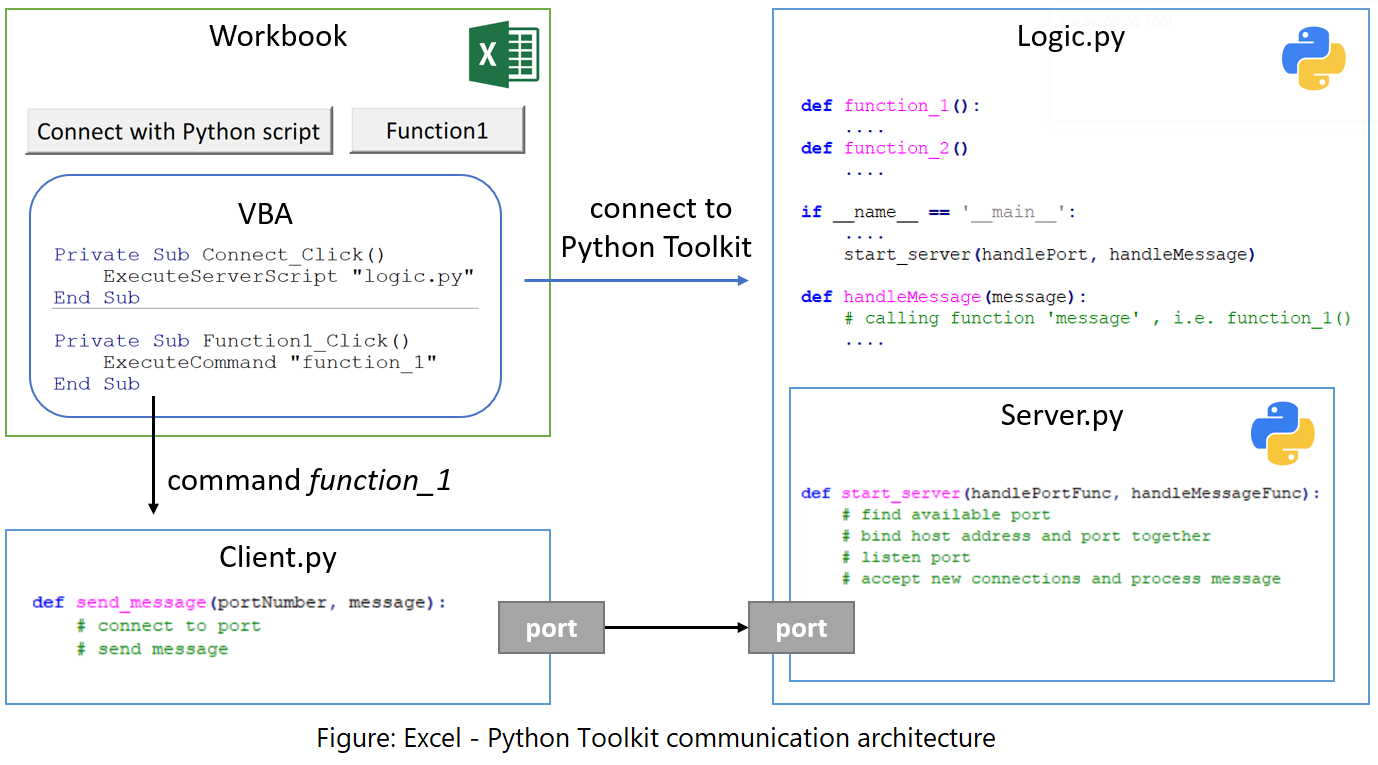
Client and server uses any available port which is identified automatically. By default, all scripts must be placed in one folder with Excel document. They also may be stored in separate folder _CommonScripts one level up (see folders structure in Case Studies)
Excel document includes several VBA functions in module Module_Functions which allow to establish connection with Python script and send command:
ExecuteServerScript: connects to python script. Run logic script which starts server.
ExecuteCommand: send command to python script.
PopulatePythonDirectory: receive paths of existing python installation and fill python folder dropdown list.
Other python directory related functions
User must select Pipesim PTK path in dropdown list to execute script correctly. All functions use named ranges for navigation.
Excel document must contain at least 2 sheets:
Introduction: sheet contains named ranges
PortNumber: port number
InstalledPython: list of python installations
Model: sheet contains named ranges
PythonFolder: drop down list of python installations
ModelFolder: place of store Pipesim model and python scripts (logis.py, server.py, client.py)
ModelFile: name of Pipesim model
Excel document must contain at least 2 form controls (button):
Connect with python script
Command
Since Python Toolkit may be installed in any folder, the python installation path may be different. When Excel document is transferred between computers, the python installation path must be updated accordingly. To simplify path selection/update, the automatic process is implemented in the Workbook_Open() method of ThisWorkbook object.
Execute following steps to create a link between Excel and python script
Use Excel Template from Case StudiesPython Toolkit
Add new button in Excel and assign new function to it
Use following VBA code sending command Function_1 to script
Add your code in logic.py script as a my_code() method
Edit handlerMessage method in logic.py script
Rename message get_test to function_1
Replace get_test() method to my_code()
    def handleMessage(message):
        if message == 'get_info':
            get_info()
            print("")
            print('Information received')
            return True

        elif message == 'get_test':
            get_test()
            print("")
            print('Test finished')
            return True

return FalseThe Pipesim Python Toolkit includes utility functions for working with Excel.
| Method | Description |
|---|---|
| active_sheet() | Return the currently active Excel worksheet |
| current_folder() | Return the folder (path) to the currently open Excel workbook. |
| get_model_session() | Get the model associated with the workbook, opening it if necessary |
| range_to_dataframe() | Convert an Excel range to a Pandas DataFrame |
| range_to_dictionary() | Convert an Excel range to a dictionary |
| worksheet_last_row() | Return the last row of the worksheet |
| worksheet_last_column() | Return the last column of the worksheet |
To return the currently active sheet object, follow this example:
    >>> from sixgill.utilities import active_sheet
>>> sht = active_sheet()The Python variable __file__ returns the script location, but this is not the same as the Excel workbook folder. The current_folder() method returns the folder of the Excel workbook.
    >>> from sixgill.utilities import current_folder()
>>> workbook_folder = current_folder()Where spreadsheets have several functions that operate on models, the get_model_session() method can handle connections to the required models. It will open the model, if necessary, or simply pass back the model object if it is already open.
In the following example, a user can run readparameters(), writeparameters() and savemodel() and the opening of the model is handled automatically:
    from sixgill.utilities import get_active_session
    model_filename = 'C:/temp/mymodel.pips'

    def readparameters():
        model = get_model_session(model_filename)
        print(model.get_values("Well"))

    def writeparameters():
        model = get_model_session(model_filename)
        new_param = range_to_dictionary(xw.Range('B4').expand().value)
        model.set_values(new_param)

    def savemodel():
        model = get_model_session(model_filename)
        model.save()
Further examples for get_model_session() can be found in the Pipesim Python Toolkit Case Studies.
Use this for passing Pipesim tabulated data such as trajectories, geometries, and such.
To convert the list of lists read in from an Excel range into a Pandas DataFrame, follow this example:
    >>> from sixgill.utilities import range_to_dataframe
    >>> geometry = xw.Range('B4').expand().value
>>> df = range_to_dataframe(geometry)Use this for handling tabulated data such a boundary conditions.
To convert the list of lists read in from an Excel range into a Python dictionary, follow this example:
    >>> from sixgill.utilities import range_to_dictionary
    >>> bc = xw.Range('B4').expand().value
>>> df = range_to_dictionary(bc)The worksheet_last_row() returns the last row with data in it. Likewise, worksheet_last_column() returns the last column with data.
    >>> from sixgill.utilities import worksheet_last_row, worksheet_last_column
    >>> last_row = worksheet_last_row()
    >>> last_column = worksheet_last_column()
They optionally take a specified worksheet name:
    >>> last_row = worksheet_last_row("ModelData")
    >>> last_column = worksheet_last_column("ModelData")