DrillPlan AEA Extensibility Tutorial
- DrillPlan AEA Extensibility Tutorial
- DrillPlan AEA Summary
- External Engine Registrations
- DrillPlan AEA Agent API
The DrillPlan AEA (Automated Engineering Analysis) framework is used to provide engineering validations to the end user, shown in the form of "AEA cards" in the front end. Each AEA card is initially shown as a traffic light
- green checkmark = successful validation (info)
- yellow exclamation = warning (warning)
- red cross = failed validation (error)
- grey question mark = missing data or input (unknown)
together with a preview message or value. Further details can then be visualized by opening the card to reveal
- messages
- text based results (e.g. key value pairs)
- links
- graphical charts
- suggestions
The 'DrillPlan Collaboration Model' allows user's to create multiple plans within a project. Any user working within the project has the ability to edit a plan by creating a "draft" (e.g. a draft might contain several edited objects like a an updated trajectory or wellbore geometry). This action automatically triggers all the engineering validations, whose input has been updated to re-calculate, providing the relevant information to the user. Once they have reviewed the results of all the validations, they can decide to share their draft changes, overwriting and automatically incrementing the latest team plan version. This in turn will also automatically re-run all the engineering validations.
DrillPlan's 'AEA Extensibility' allows additional external services, hosted anywhere on the web, to be self-registered in the corporate settings. Once successfully registered, they will automatically be called each time their inputs or dependencies are updated, providing a very flexible and powerful way to supplement the default DrillPlan experience. While initially intended to perform supplementary or IP controlled simulations, the infrastructure could and indeed has, been used in a number of creative ways including:
- to perform cross-system lookups checking that designs are synchronized in multiple applications
- to perform inventory checks of selected components
- to use other web services to provide additional information about an geographic location or field
- to broadcast update events to external systems
- to generate reports and pre-filled permits
- to provide graphics and tables to DrillPlan's reporting infrastructure (all AEA cards and their contents are automatically mapped into this application)
This tutorial aims to provide instructions on how to register a new external engine, to offer some guidance and examples of the API responses needed by the external service and to describe the available data you can extract from the system.
To register an external engine, enter DrillPlan Corporate Settings.
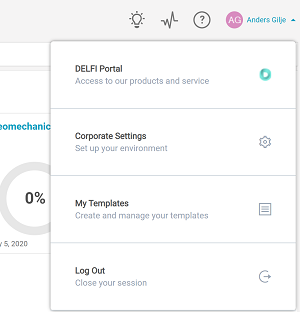
All external engines can be created, edited and deleted under 'External Engines' (located today in the Default Corporate Profile)

To add a new external engine, select the 
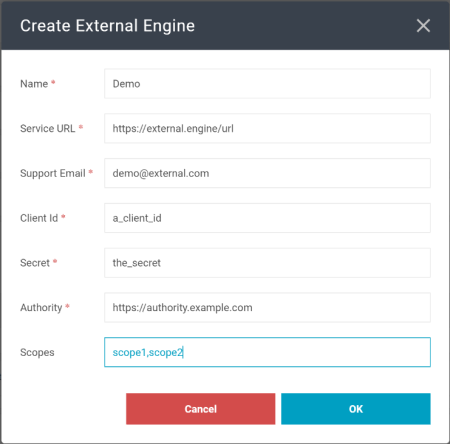
- Name: The name of the service. DrillPlan will rely on metadata name, but this is to distinguish each service in the External Engines table
- Service Url: The url to the engine. Only https scheme is supported
- Support email: The email provided here will be presented on all AEA pop-ups as a message. This is to let the user know that this engine is not natively part of DrillPlan and contacting DrillPlan help may not help resolve their issues
- Client Id: The client identifier DrillPlan relies on to authenticate through Oauth2 client credentials flow
- Secret: The secret used for authentication. The secret will be stored but not exposed in any way again. Access can be revoked later in the Edit External Engine dialog
- Authority: Enter the address to the authority server. This is the target for DrillPlan to obtain the JSON Web Token
- Scopes: Enter any scopes required, comma separated
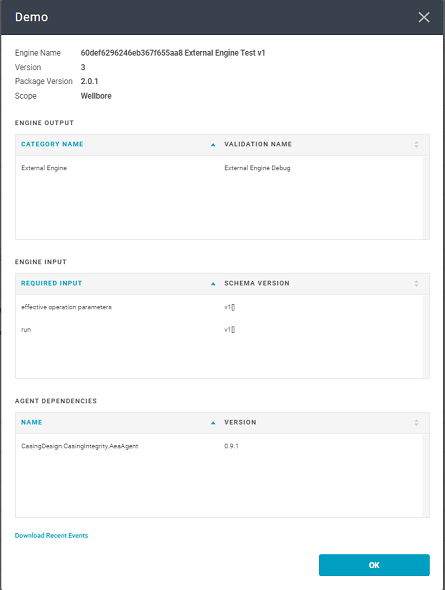
To view the engine's information, select  The metadata contains name and version of the engine.
Engine output shows under which AEA Panel tab it will be placed and what the validation card is called.
Engine input allows you to see required DrillPlan input types.
Agent Dependencies shows which DrillPlan internal engines results are required for the external engine.
"Download Recent Events" gives you the latest events from the engine as a .csv file. Its main purpose is to help while troubleshooting.
All service registration actions will be recorded. We provide this log for download by selecting the  icon. This will download the entire audit log as a .csv file.
Only valid TLS certificates are allowed, and supported TLS protocols are 1.2 and 1.3.
The DrillPlan AEA External Engine API OpenAPI specification details the required endpoints for the external service.
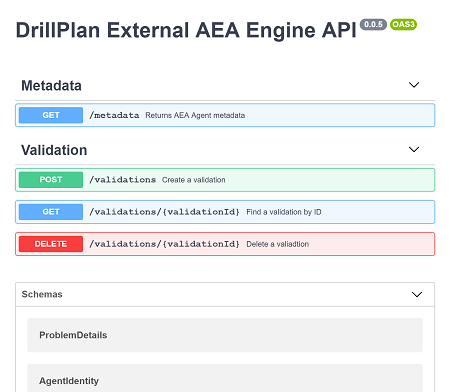
All DrillPlan AEA Agents must declare through its metadata endpoint what they require to complete their validation.
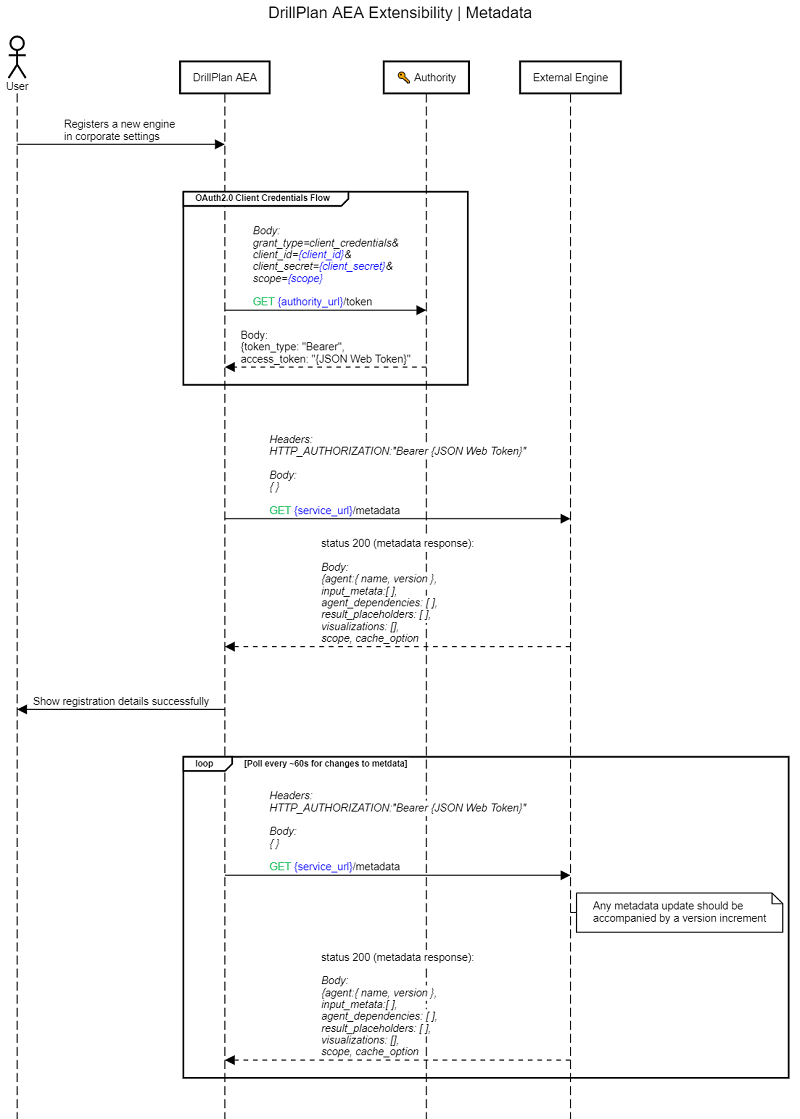
NOTE: DrillPlan will rely on the metadata both for registering engines to be part of the AEA infrastructure and as a health check.
- Input Types (Required)
- An array of at least one of the supported input types
- In cases where you want a collection, you can declare this by appending "[]" at the end of the declaration, e.g. "run-v1[]". Note that collections are only available if you declare your scope on a level higher than the required input type.
- Agent Dependencies (Optional)
- An array of DrillPlan AEA agent dependency registrations
- Validation Result Placeholder
- A description of where to place, how to group and a title of the validation result
- Scope
- The validation scope.
| Name | Metadata Type ID | Scope |
|---|---|---|
| Custom Parameters | custom_parameters-v1 | well |
| Well | well-v1 | well |
| Formation temperature | formation_temperature-v2 | wellbore |
| kick tolerance | kick_tolerance-v1 | wellbore |
| Pressure window | mww_interpolated-v2 | wellbore |
| Surface location | surface_location-v1 | wellbore |
| Trajectory Design | trajectory_design-v1 | wellbore |
| WBG | wbg-v4 | wellbore |
| Section | section-v1 | section |
| Bha tool string | bha_tool_string-v6 | run |
| Casing Run | casing_run-v1 | run |
| Casing Run - Casing | casing_run_casing-v1 | run |
| Casing Run - Liner | casing_run_liner-v1 | run |
| Casing Run - Tieback | casing_run_tieback-v1 | run |
| Casing tool string | casing_run_casing_tool_string-v6 | run |
| Effective Drilling Fluid | effective_drilling_fluid-v1 | run |
| Liner tool string | casing_run_liner_tool_string-v6 | run |
| Operation Parameters | effective_operation_parameters-v1 | run |
| Run | run-v1 | run |
| Tieback tool string | casing_run_tieback_tool_string-v6 | run |
| WBG Profile at drilling run end | wbg_profile_at_drilling_run_end-v5 | run |
If your external engine requires the results of a DrillPlan AEA internal engine, you can register this dependency in the metadata. The available agent dependecies are listed below:
| Type of validation | Name | Version | Scope |
|---|---|---|---|
| Casing Integrity Results | CasingDesign.CasingIntegrity.AeaAgent | 0.9.1 | Wellbore |
| Hydraulics ESD Results | HydraulicsEsd | 3.0.0 | Run |
| SideForceAtRunEnd | DM.Stress | 3.0.1 | Run |
Example `/metdata` response(click to open)
{
    "agent": {
        "name": "External Engine Test",
        "version": "11"
    },
    "input_metadata": [
        {
            "type_id": "run-v1[]"
        },
        {
            "type_id": "wbg-v4"
        }
    ],
    "agent_dependencies": [
        {
            "name": "CasingDesign.CasingIntegrity.AeaAgent",
            "version": "0.9.1"
        }
    ],
    "result_placeholders": [
        {
            "id": "external-engine-validation-id",
            "name": "External Engine Validation",
            "category": "External Engine"
        },
        {
            "id": "external-engine-validation-parameterized-id",
            "name": "Parameterized results",
            "category": "External Engine"
        }
    ],
    "visualizations": {
        "NTZ-compatibility-result_1": {
            "type": "log",
            "tracks": [
                {
                    "fill": [
                        {
                            "key": "planned_wob_1",
                            "label": "L1",
                            "from": "planned_min_wob_1",
                            "to": "planned_max_wob_1",
                            "style": {
                                "color": "#75CDFF",
                                "opacity": 0.5,
                                "pattern": "solid"
                            }
                        },
                        {
                            "key": "rotating_wob_1",
                            "label": "L2",
                            "from": "rotating-tension-wob_1",
                            "to": "rotating_compression_wob_1",
                            "style": {
                                "color": "#EB8180",
                                "opacity": 0.5,
                                "pattern": "solid"
                            }
                        }
                    ],
                    "fillsOverlap": [
                        {
                            "fillsKeys": [
                                "planned_wob_1",
                                "rotating_wob_1"
                            ],
                            "label": "L3"
                        }
                    ]
                }
            ]
        }
    },
    "scope": "Wellbore",
    "package_version": "1.0.0"
}
In this example, the engine provides two validation results, "External Engine Validation" and "Parameterized results". To rely on the built-in charting for an AEA card, you must declare visualization by providing a configuration for your chart declared in the validation results. In this example, it is NTZ-compatibility-result_1".
The scope tells DrillPlan AEA where to place the engine in the DrillPlan project. Currently there are 4 levels available: Well, Wellbore, Section and Run.
The following sequence diagram details the actions and API calls involved in registering a new agent (aka engine or external service) and the follow up requests to check for health and updates to the metadata.
Note that the values shown in blue are all entered in the corporate settings during registration.
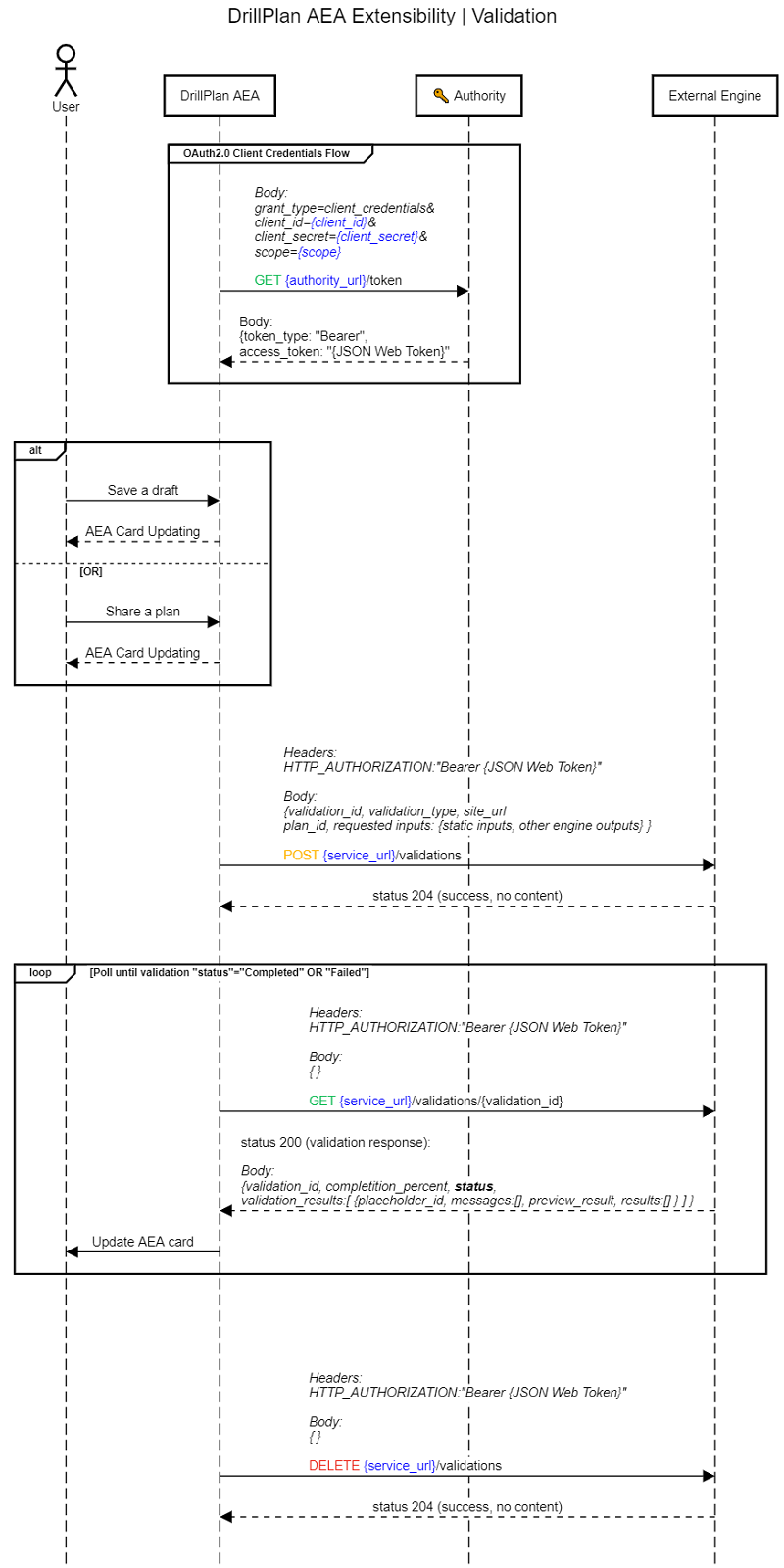
When an object is saved as draft or shared to the team plan, the AEA infrastructure will trigger a request for validation. The infrastructure will respond with cached results in the event of requesting validations on previously ran validations.
A validation request will only be made if any of the engine's required input objects are part of the change set.
When a validation is requested, a POST request is made to the AEA Agent API. This request will provide all inputs data and dependency agents results required by the engine along with a validation id. DrillPlan will rely on this validation id when polling for engine results or in an event of a cancellation.
- Single result
- Required in payload
- "$type" : "SingleResult"
- Required in payload
- Parameterized result
- Required in payload
- "$type":"ParameterizedResult"
- Templatized string that support token replacement, with unit conversion support.
- Required in payload
- Data series result
- Required in payload
- "$type": "DataSeriesResult"
- All visualizations will be defined here. This includes index and different curves, in addition how each curve is displayed. There is a developer portal in DrillPlan that let you test out supported charts. This can be found under
https://<your drillplan host>/webdrillplan/developer-portal. It may be that this is not enabled for your tenant. If so, contact your DrillPlan representative.
- Required in payload
- Preview Text Result
- Required in payload
- "$type": "PreviewTextResult"
- Required in payload
- Preview Value Result
- Required in Payload
- "$type": "PreviewValueResult"
- Required in Payload
Results will be expected by DrillPlan to be in SI. To be unit converted, the "measurement" property must be applied and must be SI compliant, i.e. "Torque", "Depth", "Pressure", "Volume" etc.
Example validation input:
Example validation payload(click to open)
{

    "validation_id": "d527cf7b-ea17-4f0a-b16d-d4fdba518134",
    "input": {
        "effective_operation_parameters-v1": {
        *Data removed for clarity. Refer to schema for possible values.*
        },
    "run-v1": {
        *Data removed for clarity. Refer to schema for possible values.*
        }
    }
}When the validation is complete, either successfully or with a failure, the result is transferred to the DrillPlan AEA infrastructure.
The results will then be presented on the AEA Panel.
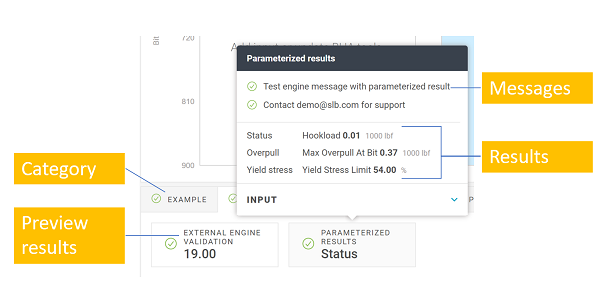 Example results
Example `validation/{validationId}` response(click to open)
{

    "id": "3351a72f-a017-46e2-809e-2b2bd5dcd843",
    "completion_percent": 1.0,
    "status": "Completed",
    "validation_results": [

        {
            "placeholder_id": **"external-engine-validation-id",**

            "messages": [
                {
                    "severity": "Info",
                    "template": "Test engine message",
                    "parameters": **null**
                }
            ],
            "preview_result": {
                "$type": "PreviewValueResult",
                "value": 19.0,
                "url" : "https://nam.drillplan.delfi.slb.com/",
                "measurement": **null**

            },
            "results": [

                {
                    "key": "NTZ-compatibility-result_1",
                    "name": "Neutral Transion Zone Results",
                    "$type": "DataSeriesResult",
                    "index": {
                        "name": "Depth",
                        "measurement": "StandardDepthIndex",
                        "values": []

                    },
                    "series": [

                        {
                            "name": "WOB",
                            "series_group": "rotating-tension-wob_1",
                            "measurement": "HighForce",
                            "values": [],
                            "parameters": **null**
                        },
                        {
                            "name": "WOB",
                            "series_group": "rotating_compression_wob_1",
                            "measurement": "HighForce",
                            "values": [],
                            "parameters": **null**
                        },
                        {
                            "name": "WOB",
                            "series_group": "sliding_tension_wob_1",
                            "measurement": "HighForce",
                            "values": [],
                            "parameters": **null**
                        },
                        {
                            "name": "WOB",
                            "series_group": "sliding_compression_wob_1",
                            "measurement": "HighForce",
                            "values": [],
                            "parameters": **null**
                        },
                        {
                            "name": "Planned Min WOB",
                            "series_group": "planned_min_wob_1",
                            "measurement": "HighForce",
                            "values": [],
                            "parameters": **null**
                        },
                        {
                            "name": "Planned Max WOB",
                            "series_group": "planned_max_wob_1",
                            "measurement": "HighForce",
                            "values": [],
                            "parameters": **null**
                        }
                    ]
                }
            ]
        },
        {
            "placeholder_id": **"external-engine-validation-parameterized-id",**
            "messages": [
                {
                    "severity": "Info",
                    "template": "Test engine message with parameterized result",
                    "parameters": **null**
                }
            ],
            "preview_result": {
                "$type": "PreviewTextResult",
                "text": "Status"
            },
            "results": [
                {
                    "name": "Status",
                    "$type": "ParameterizedResult",
                    "template": "Hookload {hookload-key}",
                    "parameters": [
                        {
                            "key": "hookload-key",
                            "value": 30.725,
                            "measurement": "HighForce",
                            "display_decimal_place": 3
                        }
                    ]
                }
            ]
        }
    ]
}The following sequence diagram details the actions and API calls involved in creating a new validation, the checking the results and finally the delete.
Note that the values shown in blue are all entered in the corporate settings during registration.