With a vision for Agora Operations personnel not being a full-time developer it should be easy enough for them to change configuration or Push configuration to edge apps running on gateway from outside or from any simple UI Interface.
To be able to push configuration changes from cloud to Edge & Edge to Cloud where applications are running as container/s. These configurations essentially be an alternate configuration supported by IIot Edge SDK 2.0.
The Agora AEA2 File-Manager being core AEA component, handles file transfer for AEA2 applications to/from the cloud as well as hosts files for sharing at the edge. This AEA2 Edge app is built using C# IIoT Edge SDK 2.0 and it hosts a service within the container which has a listener for physical file/s on the host.
Technical Design: Shared volume binding for file transfer across edge apps and cloud.
{
	"aea2filemgr": {
		"restartPolicy": "always",
		"settings": {
			"createOptions": "{\"HostConfig\":{\"Binds\":[\"/home/var/Configurations/aea2-file-manager/:/app/config\",\"/home/var/FileManager/Files:/app/Files\",\"edge-share:/edge-share\"],\"Memory\":3145728000}}",
			"image": "{registryName}.azurecr.io/{ImageName}:{tagName}"
		},
		"status": "running",
		"type": "docker",
		"version": "1.0.1"
	}
}
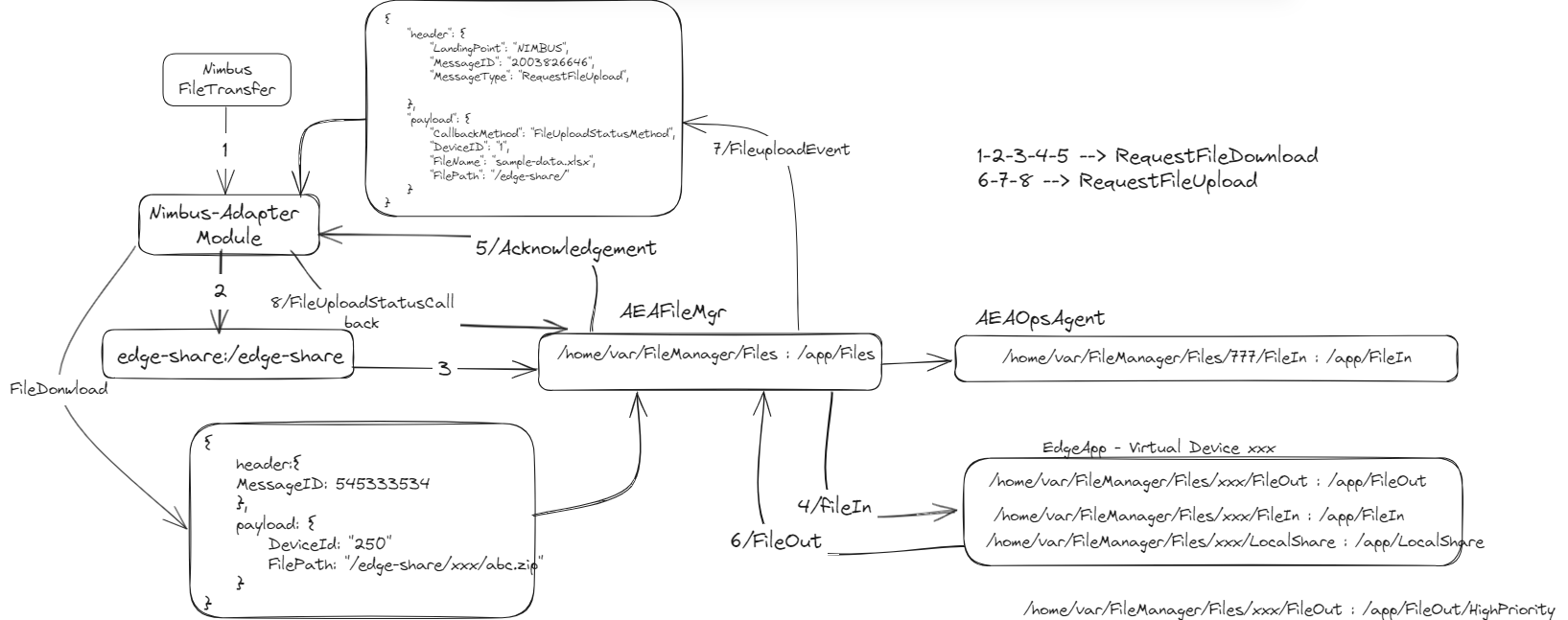
The File Manager takes advantage of File Transfer Svc(iiot-edge-filetransfer-svc) module to move file/s to/from Gateway to Cloud from Edge-Share. File Manager & other supporting Edge Apps like aea2-mqtt-borker, aea2-core-bridge etc. are supposed to deployed and proper routing needs to set up between them.
Agora File Manager works with Ops Agent to push file/s to an Edge app running on the gateway that could be anything (configuration files, alt configuration files or any other supporting files). The Edge App deployed on gateway needs to be commissioned as a virtual device from IOT-Admin Portal (Agora Ops) with a shard volume binding.
For example:
{
  "aea2edgeApp": {
    "restartPolicy": "always",
    "settings": {
      "createOptions": "{\"HostConfig\":{\"Binds\":[ \"/home/var/FileManager/Files/250/FileIn:/app/FileIn\",\"/home/var/FileManager/Files/250/FileOut:/app/FileOut\",\"/home/var/Configurations/EdgeAppNAme:/app/config\"],\"Memory\":3145728000}}",
      "image": "{registryName}.azurecr.io/{ImageName}:{tagName}"
    },
    "status": "running",
    "type": "docker",
    "version": "1.0.1"
  }
}
[!NOTE] "/home/var/FileManager/Files/250/FileIn:/app/FileIn" - Here 250 is the virtual device id comissioned on IOT admin portal.
To push alternate configuration below are the pre-requisites:
- Configuration files needs to be zipped & named same as that of EdgeAppName used in shared volume binding as highlighted above.
- On the gateway IIoT Edge App AEA2 OpsAgent must be deployed. This Edge App needs to be also commissioned on Agora Ops Portal with a Virtual Device-ID. Sample container create option for AgoraOpsAgent. Here in this case a virtual Device ID 256 is used.
[!NOTE]
{registryName}.azurecr.io/{ImageName}:{tagName}. Internal/Private Container Images are available on AgoraPrivate Container Registry.
{
  "aea2opsagent": {
    "restartPolicy": "always",
    "settings": {
      "createOptions": "{\"HostConfig\":{\"Binds\":[\"/home/var/FileManager/Files/777/FileIn:/app/FileIn\",\"/home/var/Configurations/:/app/Configurations\",\"/home/var/Processed/:/app/Processed\"],\"Memory\":3145728000}}",
      "image": "{registryName}.azurecr.io/{ImageName}:{tagName}"
    },
    "status": "running",
    "type": "docker",
    "version": "1.0.1"
  }
}
For more info on Agora AEA2 OpsAgent refer to OpsAgent.
- Finally initiate file transfer from Agora Ops Portal targeting virtual device commissioned for AgoraOpsAgent.
In Agora AEA2 world, each application built using IIoT SDK 3.0 expects to have host binding (Bind Mount) for
a. /FileIn --> This location should be used by application to expect any file from Cloud.
d. /Config --> This location should be used by application to expect any alternate configuration to be used by Edge App from Cloud for making a file transfer to an Edge App running on the gateway.
- A host binding (Bind Mount) should be created for /FileIn that will be used by File-Manager.
- A file transfer needs to be initiated from AgorOps Portal targeting a virtual Device-Id commissioned for that Edge App on Ops Portal.
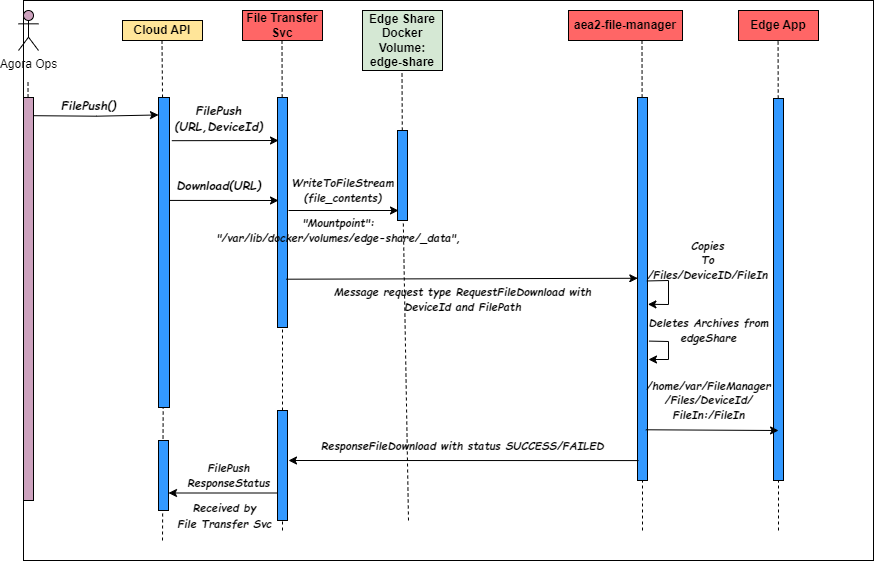
A high-level sequence of activities that takes place when a file transfer has been initiated from Agora Ops Portal.
[!NOTE] These activities sequence is applicable to both of the workflows explained above, however Device-Id needs to be a Device-Id commissioned for Ops Agent Edge App on Ops Portal for Alt configuration File/s push.
Agora File Manager can push a file from Gateway to Cloud. Module generating files needs to share volume with File Manager. File Manager will detect the files and push it to the Cloud. The complete workflow is as shown below.
In Agora AEA2 world, each application built using IIoT SDK 3.0 expects to have host binding (Bind Mount) for
a. /FileOut --> This location should be used by application to push any file to Cloud. within /FileOut edge App needs to create below locations to upload files to Cloud based on priority.
- /FileOut/HighPriority -- Use this location to make high Priority file upload to Cloud, File Manager prioritize this location compare to any other location.
- /FileOut -- Anytihng that is put outside the '/FileOut/HighPriority' will be given lower priority.
c. /LocalShare --> This location should be used by application to store files locally & these files can be exposed via an HMI. With this HMI user will be able to locate, view, browse & download file locally.
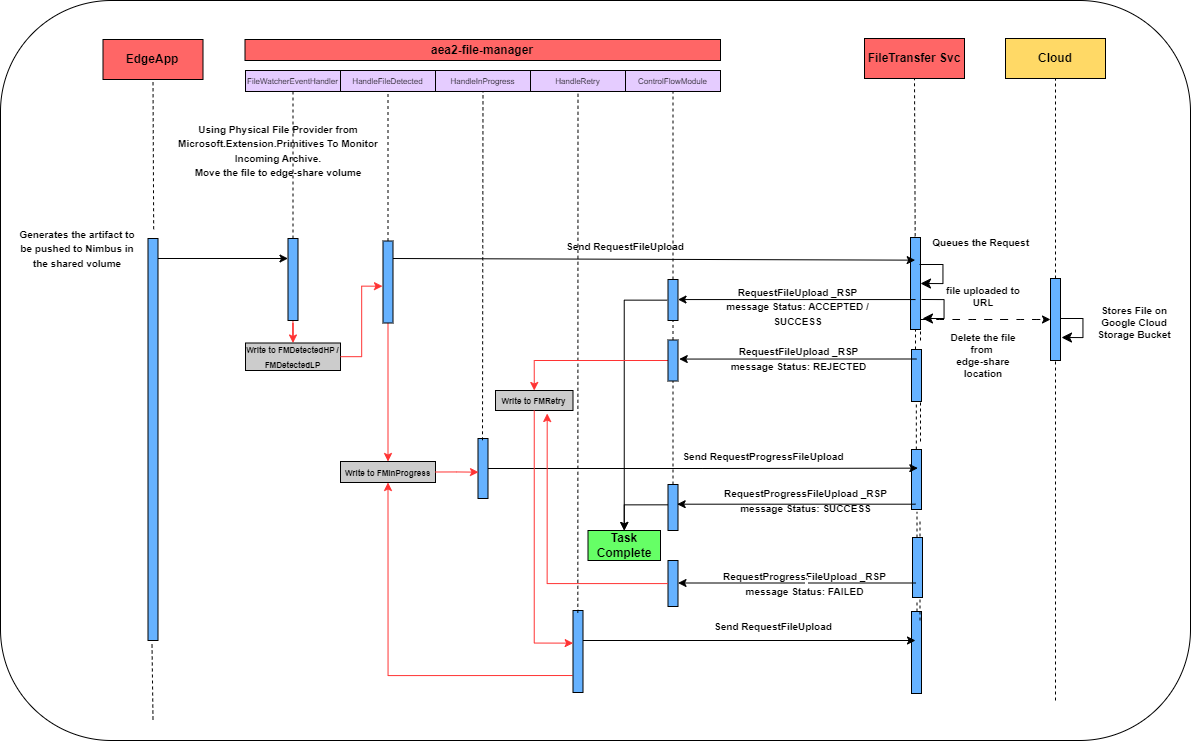
Once a file is pushed to /FileOut folder by an application, the File Manager moves the file to the configured /Edge-share volume path and sends a FileUpload Request to the Cloud. The application creates following Redis keys to keep track of the File Upload.
- FMHPDetected : List Type which hold the completed path of files inserted in /FileOut/High-Priority folder.
- FMLPDetected : List Type which hold the completed path of files inserted in /FileOut/ folder. These will be the low Priority files.
- FMInProgress : Hash Key with request Id as the field and file details as value. Contains the files for which RequestFileUpload/ RequestProgressFileUpload request is sent and response is awaited.
- FMRetry : Hash key with file path as the field and file details as value. Contains the files for which REJECTED / FAILED response is received due to throttling in File Transfer Svc.
- FMFailed : Hash key with file path as the field and file details as value. Contains all the files which got rejected even after multiple tries or had exception during validation or processing. These files will not get processed any longer.
The File Details saved in the Redis is a stringfied json of below schema:
{
  "CurrentStatus": "FILEREQUESTSENT",
  "DeviceId": "501",
  "FileName": "16AprFileIn501.txt",
  "FilePath": "/Files/501/FileOut/High-Priority/16AprFileIn501.txt",
  "FileSize": 7,
  "Priority": 1,
  "CurrentLocation": "/edge-share/501/16AprFileIn501.txt",
  "EdgeSharePath": "/edge-share/501/16AprFileIn501.txt",
  "MessageId": 244143700,
  "RetryCount": 0,
  "WaitTime": "00:01:00",
  "StartTime": "2025-10-10T13:46:10.0394862Z",
  "FailureMsg": ""
}
[!NOTE] Based on the response received from the File Transfer Svc, a file details are moved to different Redis Keys. Once the file is ACCEPTED by the File Transfer Svc the file is marked as COMPLETE in the file manager and its entry in the FM* redis keys is removed. The Files from edge-share volume bind are generally cleaned by the File Transfer Svc.