The Developer Portal provides the OAuth Playground to help you understand the OAuth authorization flows and show each step of the process of obtaining an Access token.
The OAuth Playground is a zero-code utility where you can perform an OAuth Authorization Code Flow to obtain Access and Refresh tokens issued for your confidential client and to perform a Token Exchange Flow to obtain an Access token for the selected scopes.
Developers can use the OAuth Playground in the Developer Portal when they want to quickly explore APIs of interest without having to worry about writing complete code for authentication and authorization flow. With the obtained Access token, you can execute APIs from Try it functionality of SLB Developer, command line utilities, scripts, Jupyter notebook, etc.
Note: The Access tokens and Refresh tokens provided by the OAuth Playground are meant to try out APIs only and must not be used to build production applications.
Follow below steps to get an Access token using the OAuth Playground:
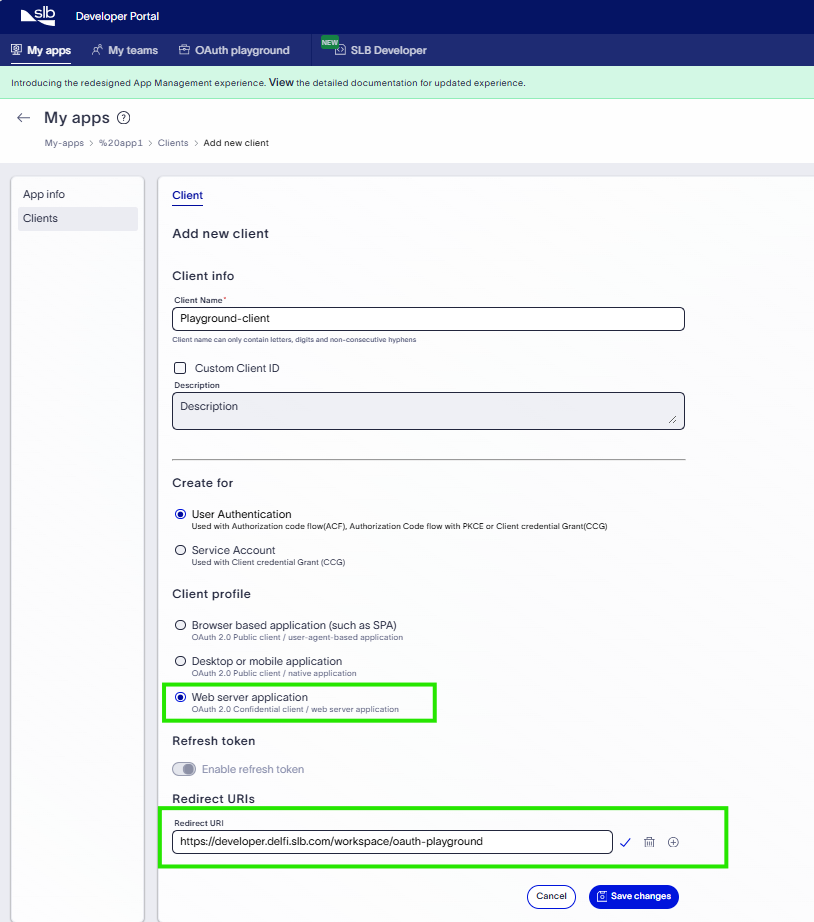
1.1. You will need Client ID and Client Secret value of an OAuth Client created in SLB Developer Portal. This Client should be confidential client created for "Web Server Application" with a redirect URI : https://developer.delfi.slb.com/workspace/oauth-playground.
If you do not have existing Client ID, then you need to create a new confidential client for "Web Server Application" with a redirect URI as: https://developer.delfi.slb.com/workspace/oauth-playground .
Client ID can be created under existing App. If you do not have any existing app, refer Create an App
Refer Create Clients for web server apps for details. Please make sure that https://developer.delfi.slb.com/workspace/oauth-playground is added as redirect URI duing client creation.
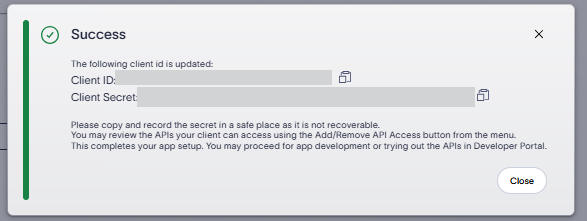
After creation of Client, take note of the Client ID and Client secret. Make sure to copy and paste the secret to safe place as it is not recoverable.
1.2 Provide the Client ID and Client secret values in the OAuth Playground Step 1 form. Click on Confirm button to get the authorization code. The response is listed on the right side of the form which includes, among other attributes, the "Authorization Code". This authorization code is required for "Step 3: Get an Access token and a Refresh token". 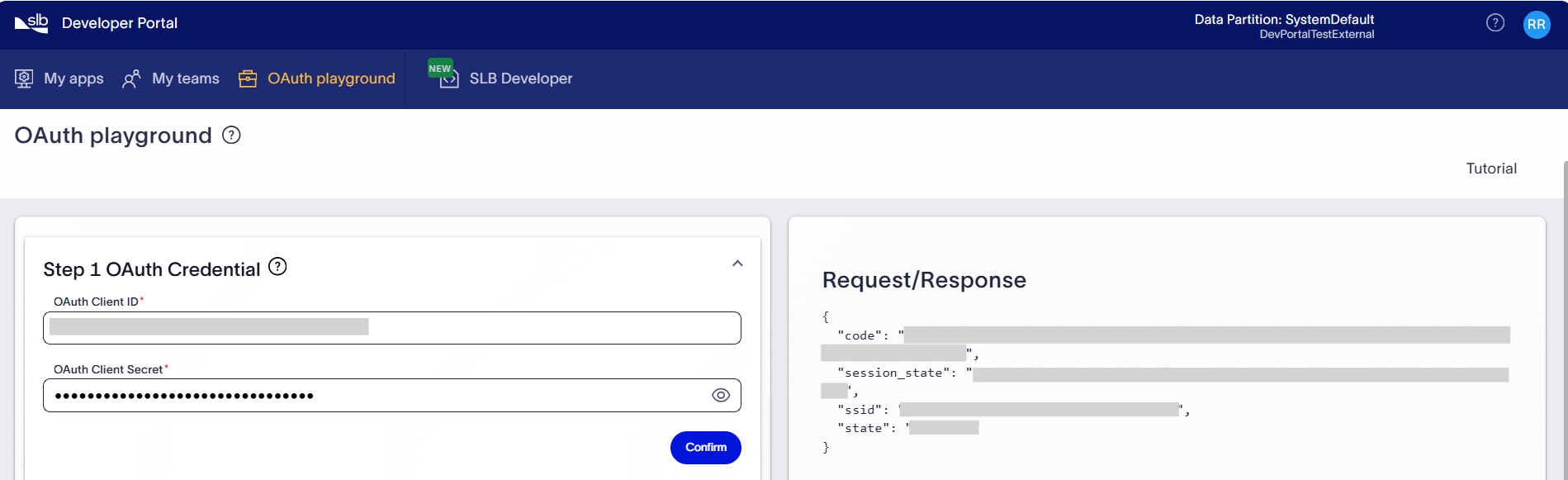
Provide the list of APIs for which you need to generate an access token in OAuth Playground Step 2 form. You have below 2 options to specify the APIs.
- Select the APIs from the predefined list. Notice that the list contains services that have been scoped to the user's billing account.
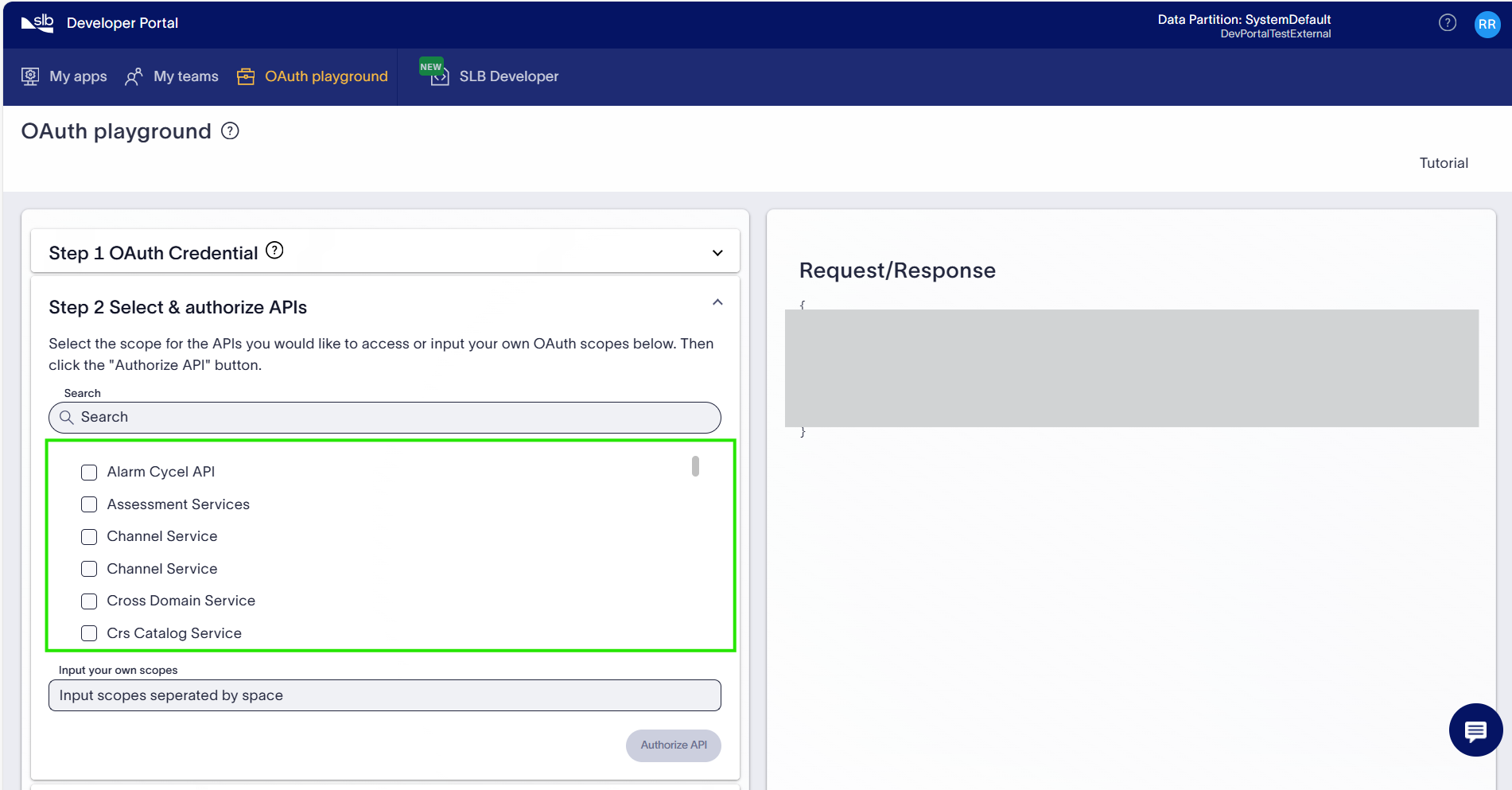
- If you know the Client IDs for APIs, You can also provide a list of the Client IDs, separated by a space.
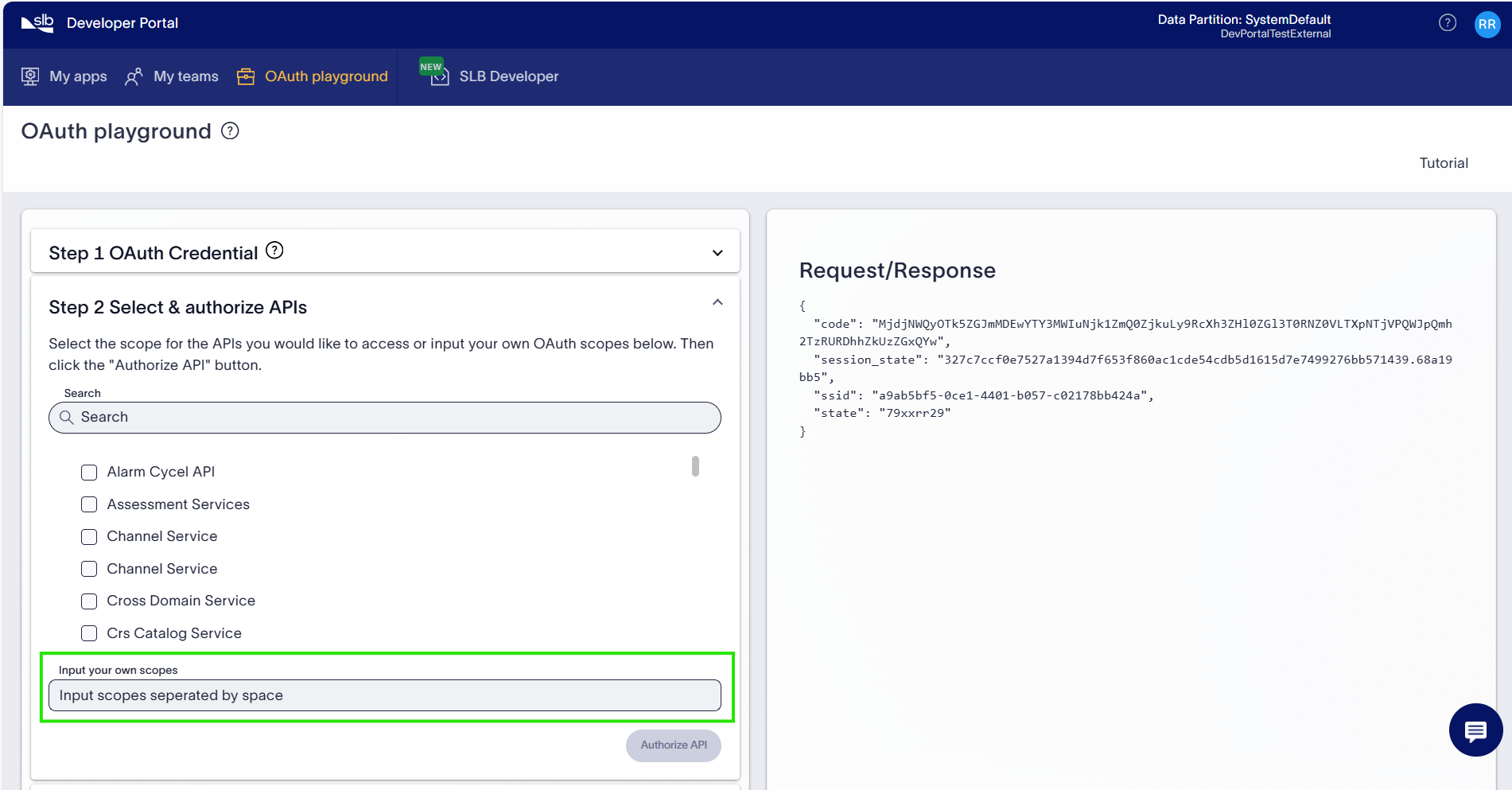 Note: To know the Client ID of an API, visit the respective API specification page present under API Reference section of SLB Developer site, as shown in below screenshot.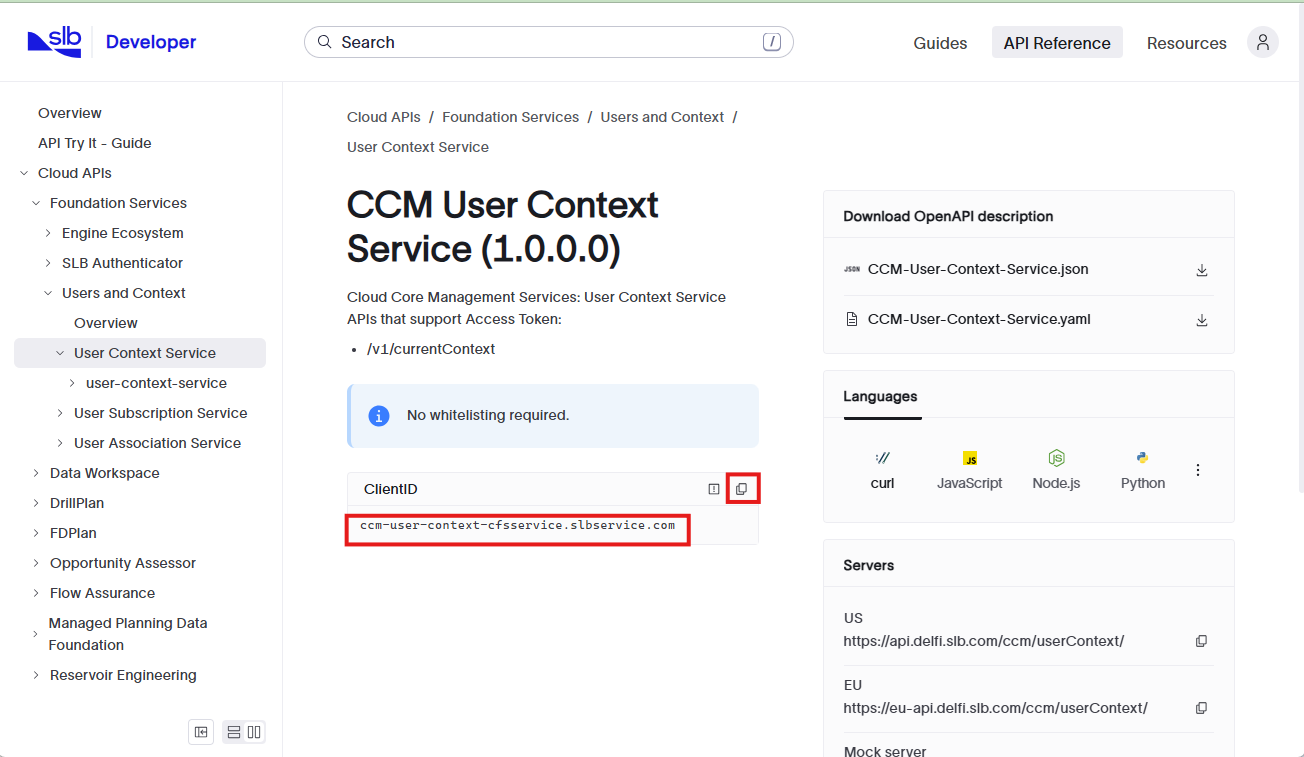
- Click Authorize API to prepopulate the authorization code.
Note: For calling APIs that require explicit approval, ensure that your Client ID created in step 1 has approved API access, otherwise the generated token will not work for the intended API call. 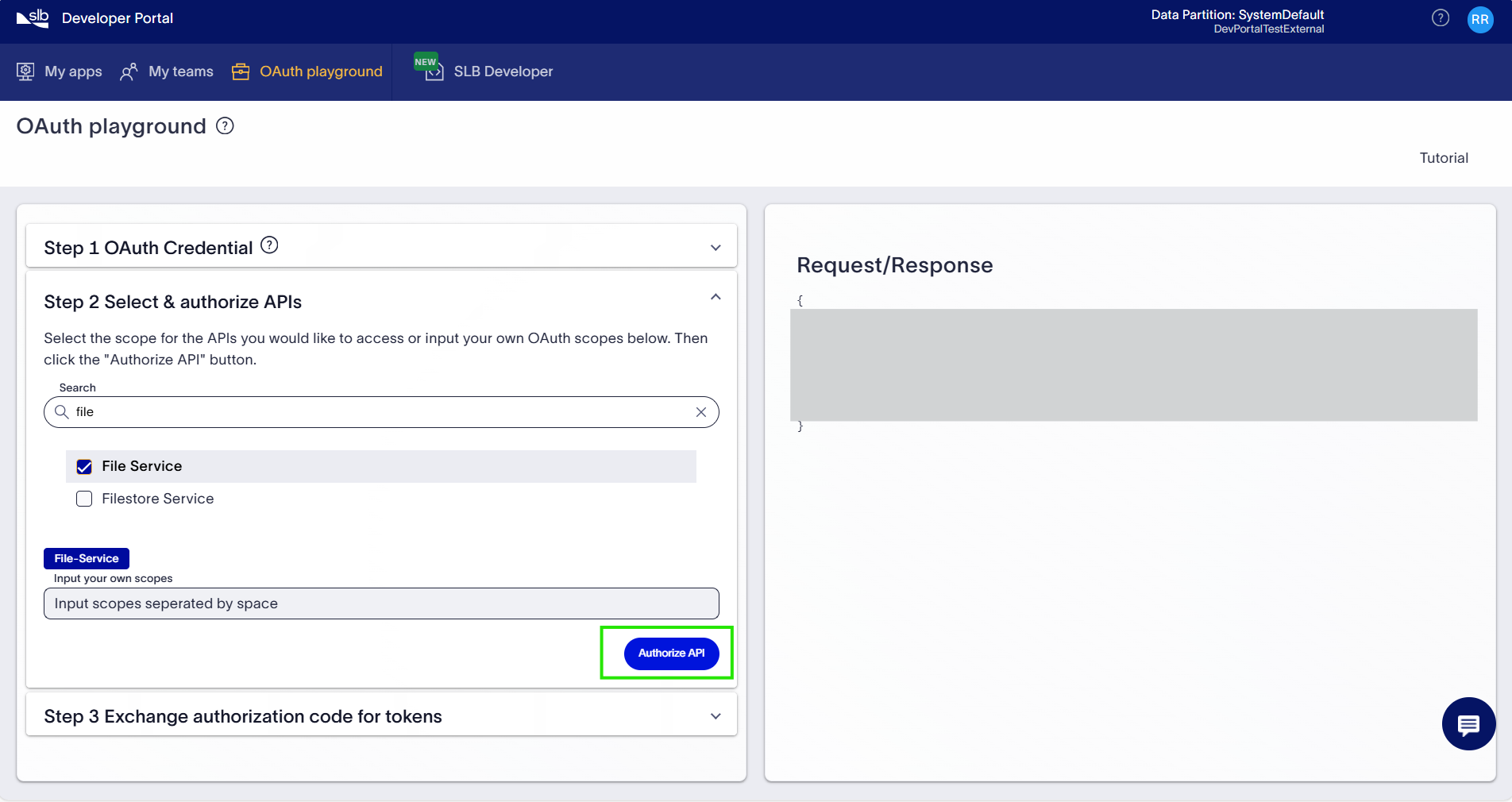
This step uses the authorization code created for the user login in Step 1: Create an OAuth Client in the Developer Portal to get an Access token and Refresh token. Access and Refresh tokens are generated using the Client ID provided and the authorization code obtained in "Step 1". Subsequently, the Access token issued for the user's Client is used to perform a token exchange for the API services selected in the "Step 2".
3.1 Click on "Exchange Tokens" button on OAuth Playground Step 3 form.
3.2 At this point, the user Access token and Refresh token are populated in the OAuth Playground. Copy the Access token and Refresh token using the copy button. 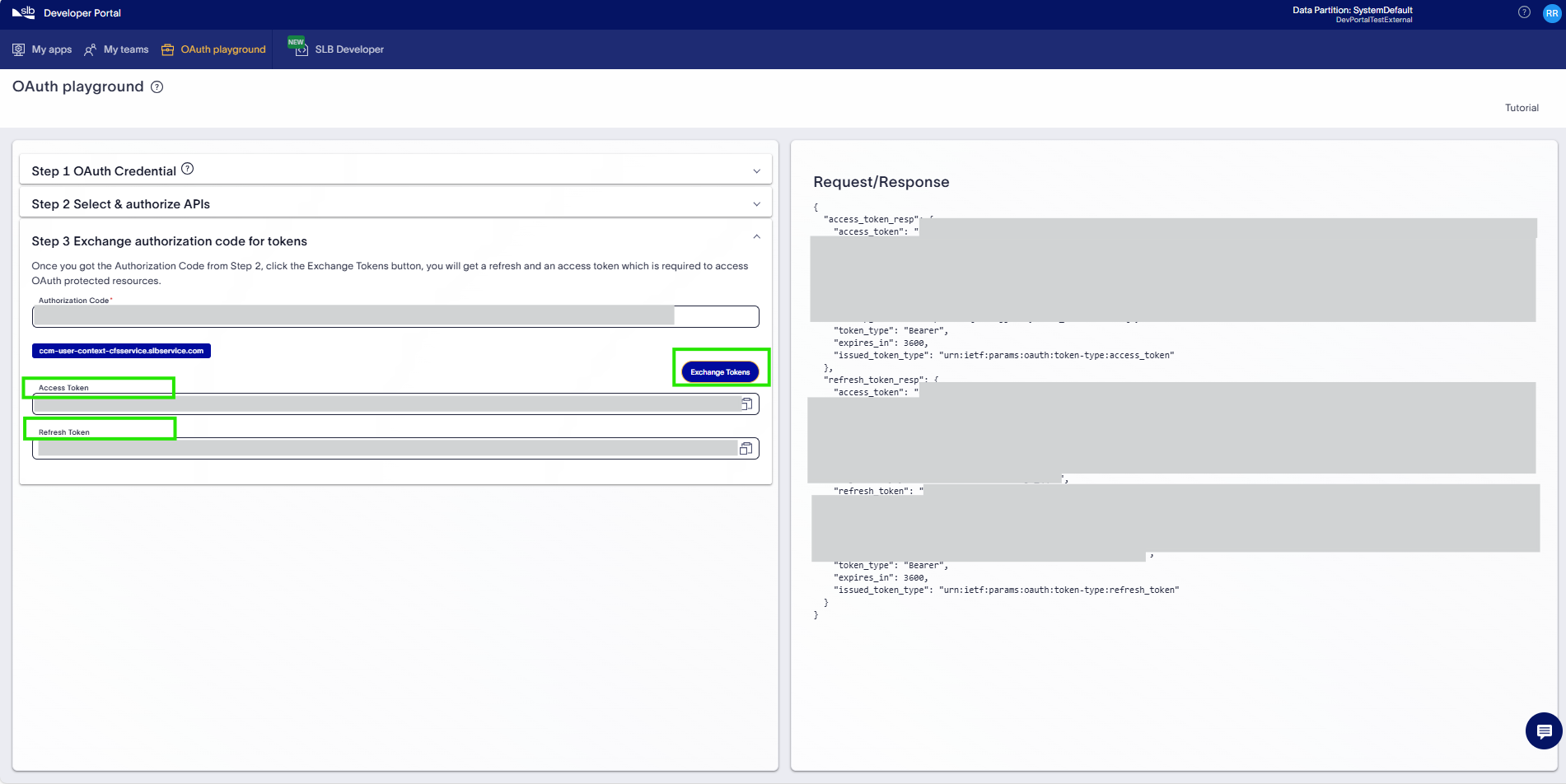
Now you can call the APIs (selected in step 2) using this Access token and Client ID.
Note: This Access token is valid for 1 hr only and must be refreshed using the Refresh token and again exchanged for the target Client IDs . If you need to continue using your program with the Access token beyond token expiration, consider implementing the Refresh token methods using the provided Refresh token above.
Access tokens have limited lifetimes. If your application needs access to an API beyond the lifetime of a single Access token, it can obtain a Refresh token. A Refresh token, provided in "Step 3: Get an Access token and a Refresh token", can allow your application to obtain new Access tokens.