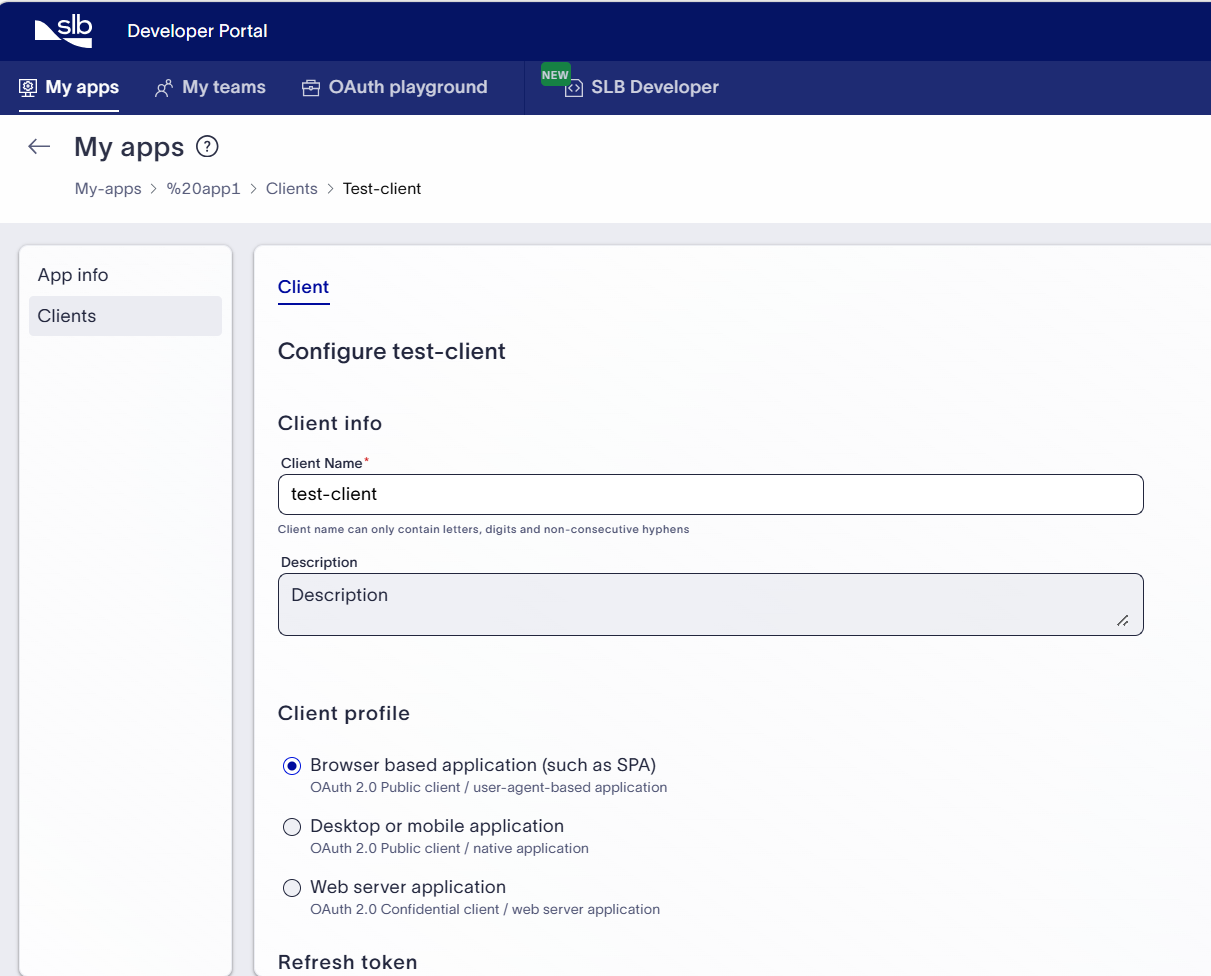
In the Developer Portal, navigate to My Apps tab and select the Team from the drop-down menu. This opens the My Apps page showing the list of Apps created for the selected Team.
Click on Configure button for an App. This opens the App info to show the details of the selected App.
Click the Clients tab on the left pane.
Click the Configure button on the right side of the row for the Client you want to edit.
You can edit the Client Name, Description, Client Profile, and Redirect URI.
Click Save. The edited Client appears in the list of Clients on the Clients tab.
Delete Client
In the Developer Portal, navigate to My Apps tab and select the Team from the drop-down menu. This opens the My Apps page showing the list of Apps created for the selected Team.
Click on Configure button for an App. This opens the App info to show the details of the selected App.
Click the Clients tab on the left pane.
Click the Configure button on the right side of the row for the Client you want to delete.
Click on 'Delete' button that appears at the bottom of the client details page. The warning, "The Client cannot be recovered once it has been deleted." appears.
Click Delete if you want to proceed or Cancel if you do not want to proceed.
The Client is deleted when clicking the Delete button.