In the Developer Portal, navigate to My Apps tab.
Select the Team from the drop-down menu that the new App will be associated with.
Click Add New App. Note if you do not see the Add New App button, you are not a Team Owner and cannot add a new App to the Team.
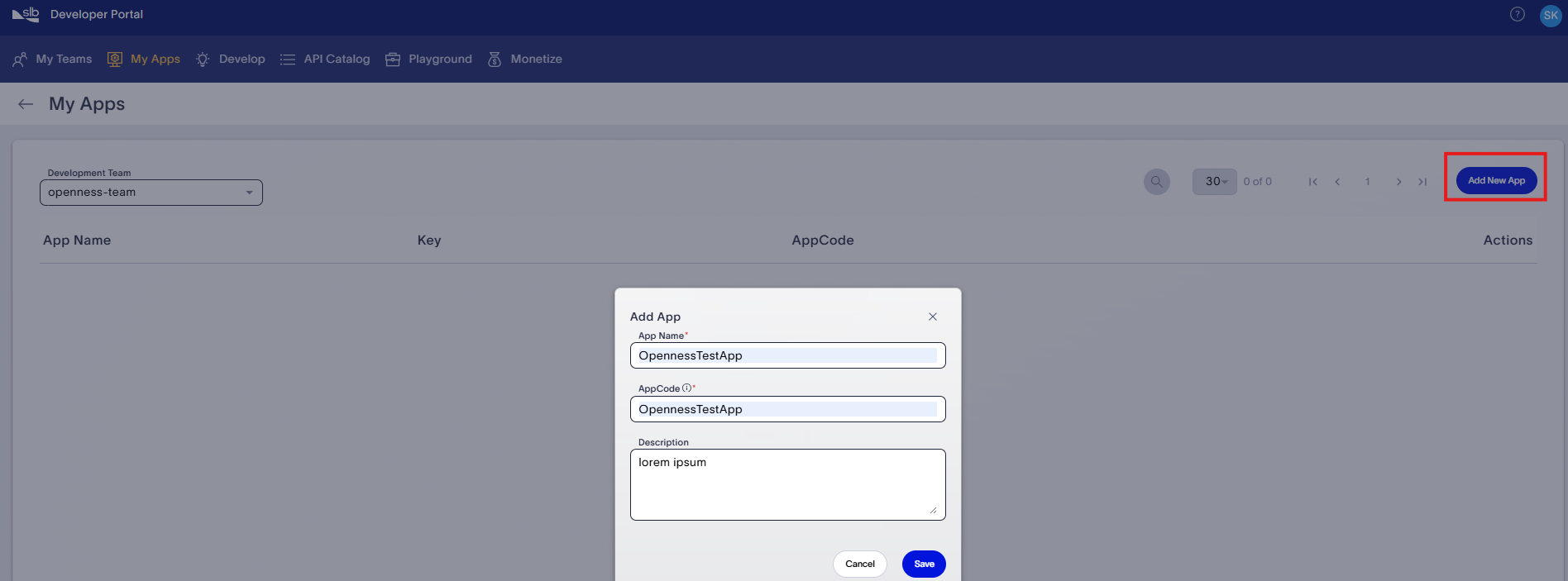
Enter your App name. We recommended that you prefix the App name with your Team name, then use an abbreviated description of your App. Optionally add a description.
Provide an AppCode and an optional description and click Save. This creates the App entry in the list of My Apps.
The AppCode name must adhere to the following validation rules. It is important to respect these rules to avoid issues when commercializing the application:
- Can only have alpha-numeric values [A-Z a-z 0-9 -].
- Cannot have whitespaces.
- Can have a maximum of 40 characters.
- Cannot have special characters, except non-consecutive hyphens. Hyphens can be used but must not contain leading or ending hyphens.
In the Developer Portal, navigate to the My Apps tab and select the Team from the drop-down menu. This opens the My Apps page and shows a table with the list of Apps created for the selected team. The table also shows the AppCode, AppKey, etc., for each App in the table.
Click the App name to see detailed information about the App including "Created By" and "Created On" in the right-side panel.
Click the Clients tab to see the list of Clients.
In the Developer Portal, navigate to the My Apps tab and select the Team from the drop-down menu. This opens the My Apps page that shows the list of Apps created for the selected team.
From the App list view under My Apps, click the Overflow menu option of the App to edit.
Click Edit App Details. You can make changes to the App name and description. Avoid adding a Group ID until the app needs to be commercialized. The Group ID value must be aligned with the Business System teams.
Click Save.
In the Developer Portal, navigate to the My Apps tab and select the Team from the drop-down menu. This opens the My Apps page that shows the list of Apps created for the selected team.
From the App list view under My Apps, click the App whose Appkey needs to be regenerated.
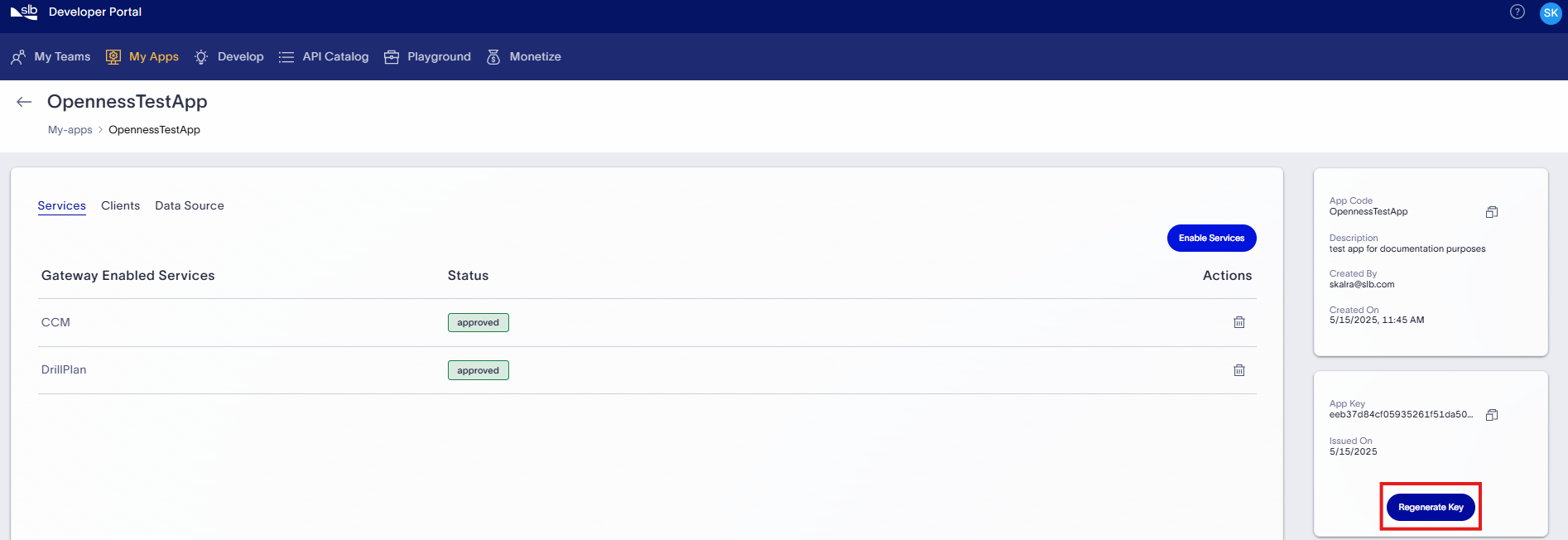
- Click Regenerate Key button on the right-side panel below the Appkey value. The Appkey for the App gets regenerated.
In the Developer Portal, navigate to the My Apps tab and select the Team from the drop-down menu. This opens the My Apps page that shows the list of Apps created for the selected team.
From the App list view under My Apps, click the Overflow menu option of the App to delete.
Click Delete App. You only see this option if you are a Team owner.
Click Confirm on the pop-up window, and your App is permanently deleted.